Entering a competition
Find an event, pick your classes and pay by card. You can look around without an account and only sign up when you're ready to enter. Your dogs, music, entries and results then stay in one place, and once the organiser chooses to show scores you can see the scoreboard and your marks from your phone, on the day or afterwards.
Find an event
No account needed to look. Everything you need to decide is on the event's own page.
Upcoming events lists every show taking entries, soonest first. Search by name, venue or town, filter by type of event, or use the quick filters for This weekend, Next 30 days, training shows and workshops. Each card tells you the date, the venue and whether entries are open, and when they close.
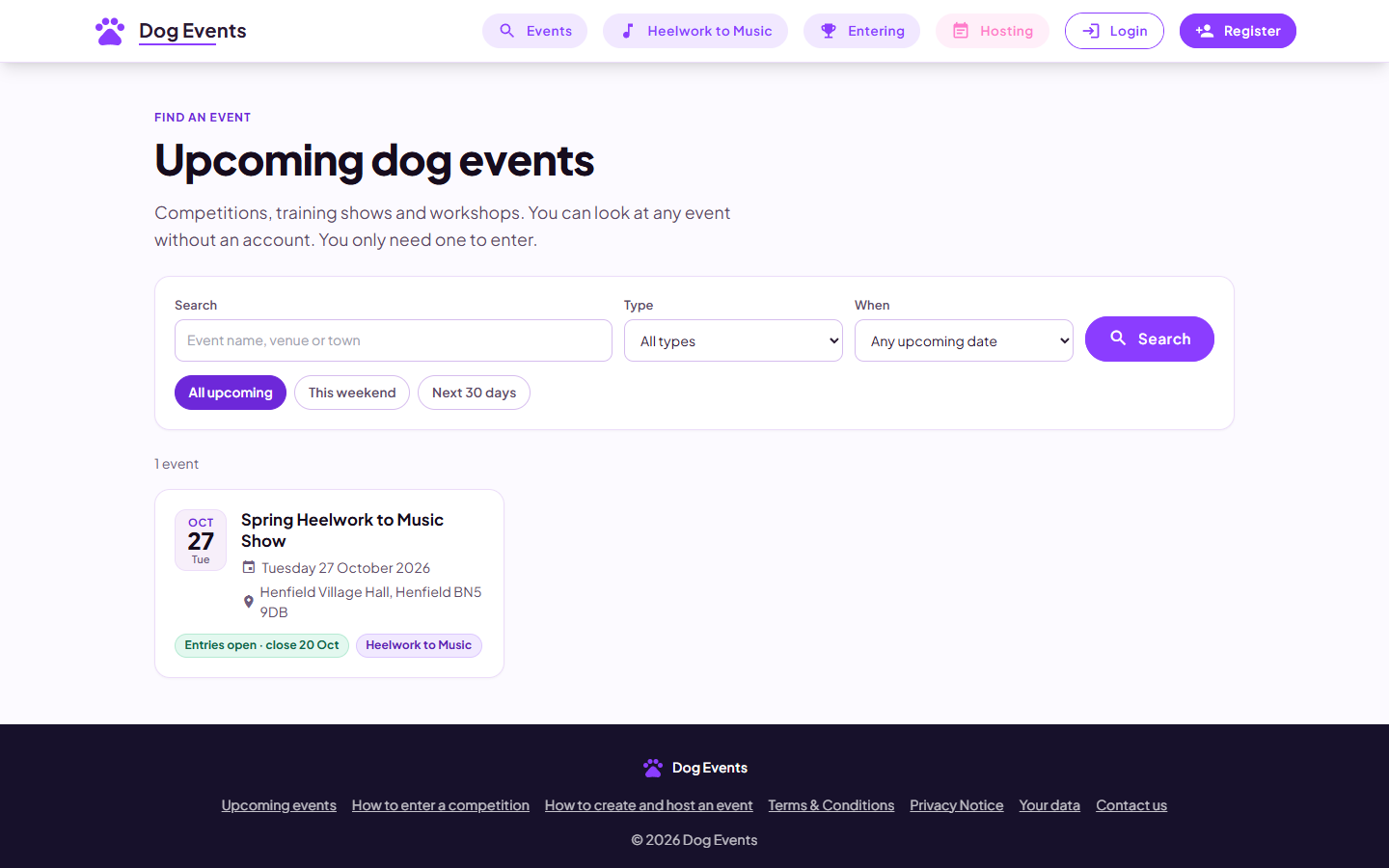
Upcoming events. Search, filter, and see at a glance which ones are open.
Open an event to see the date and venue, with Get directions and a map link, what each class costs, any extras such as parking, and how to enter. The booking fee is explained before you start, so there are no surprises at the checkout.
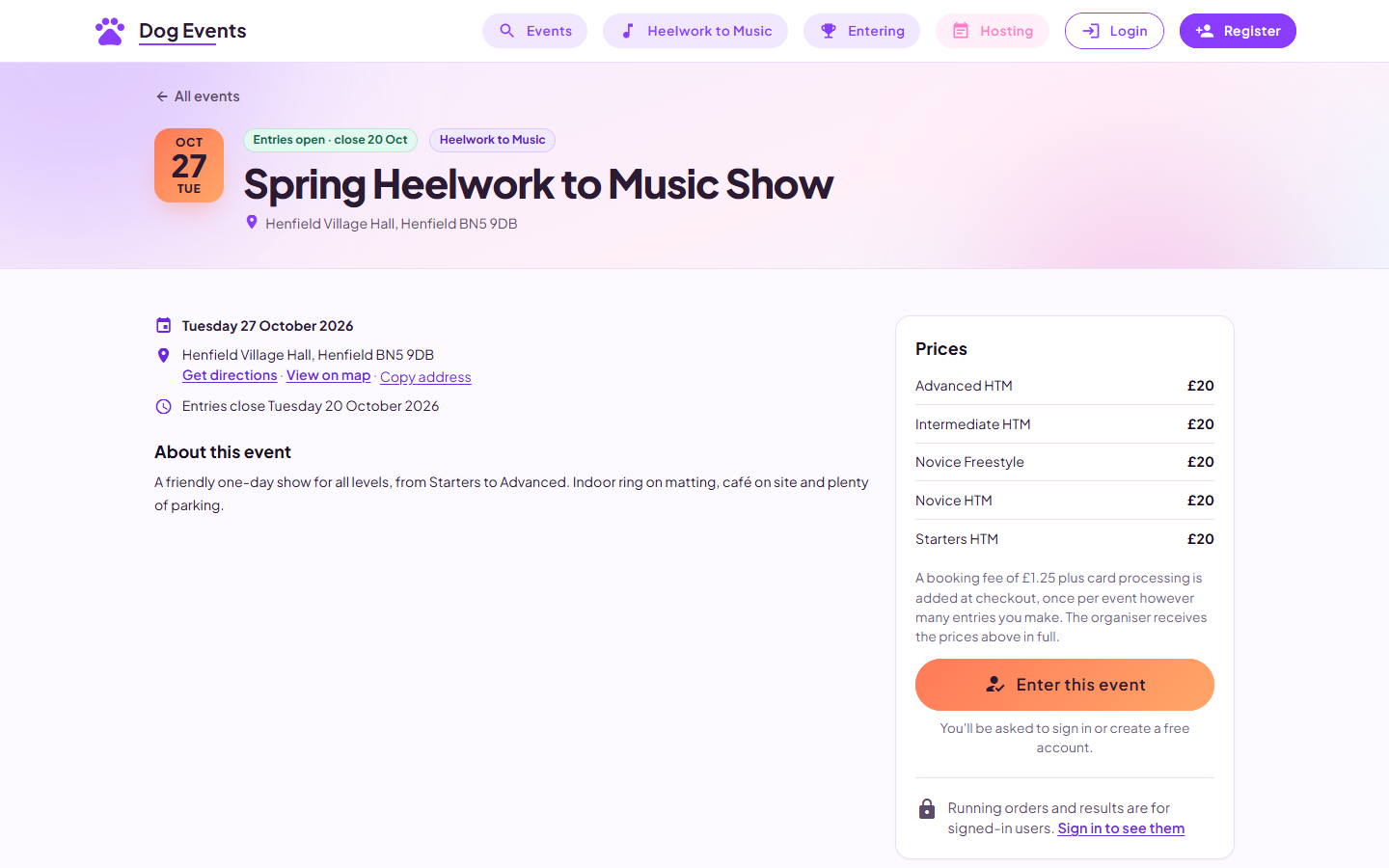
An event page. Date, venue and directions, prices per class, and the Enter button.
- Entries opening soon? The page says when, so you know when to come back.
- Some events take entries elsewhere. They show a Book on the organiser's website button instead, or say the organiser handles entries directly.
- Running orders and results are for signed-in users, as they name the entrants and their dogs.
Create your account
Free, and about a minute. One account covers every event on the site.
When you press Enter this event you're asked to sign in or register. Registration asks for your name, email address and a password, and we email you a six-digit code to confirm the address is yours. Then you're straight back to the event to carry on.
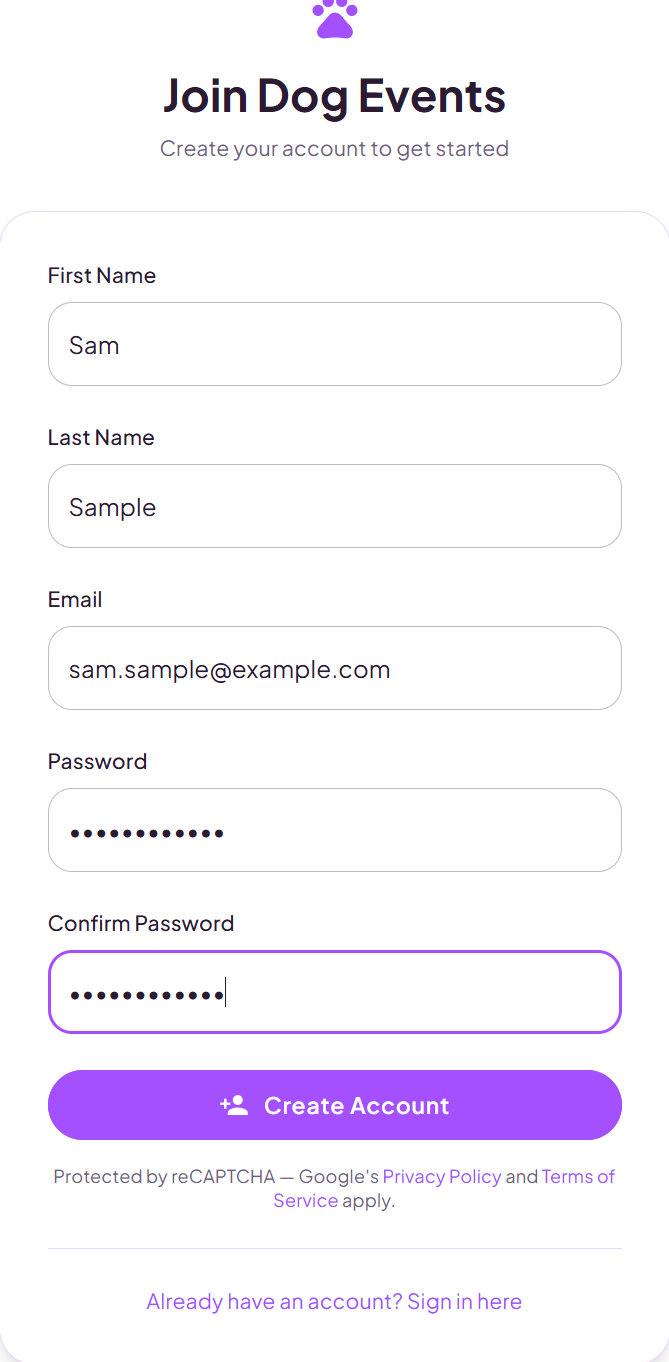
Registering. Name, email and a password.
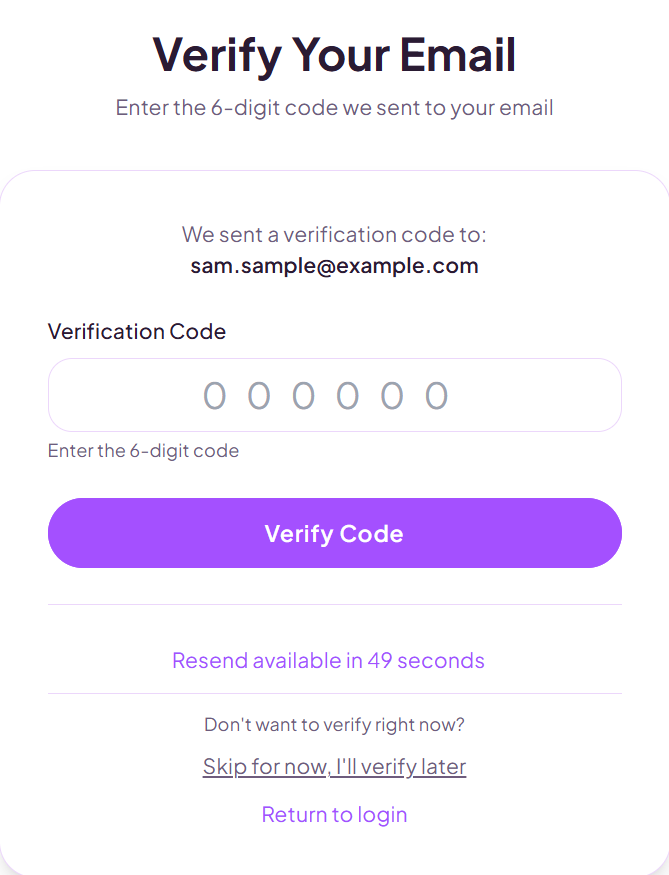
Enter the six-digit code from your email to confirm it.
- The same login covers everything: entries, dogs, payments and any classes you judge.
- Forgotten your password? The sign-in page emails you a secure link to reset it.
- Change your name, email address or password at any time from My Profile.
Choose your classes and dogs
One row per entry: class, dog, handler. Add as many rows as you like and pay once.
Pick a class and a dog, and the handler fills itself in. For another class, or the same class with a second dog, press Add another entry at this event. Classes that are full say so, and how many places are left in the others.
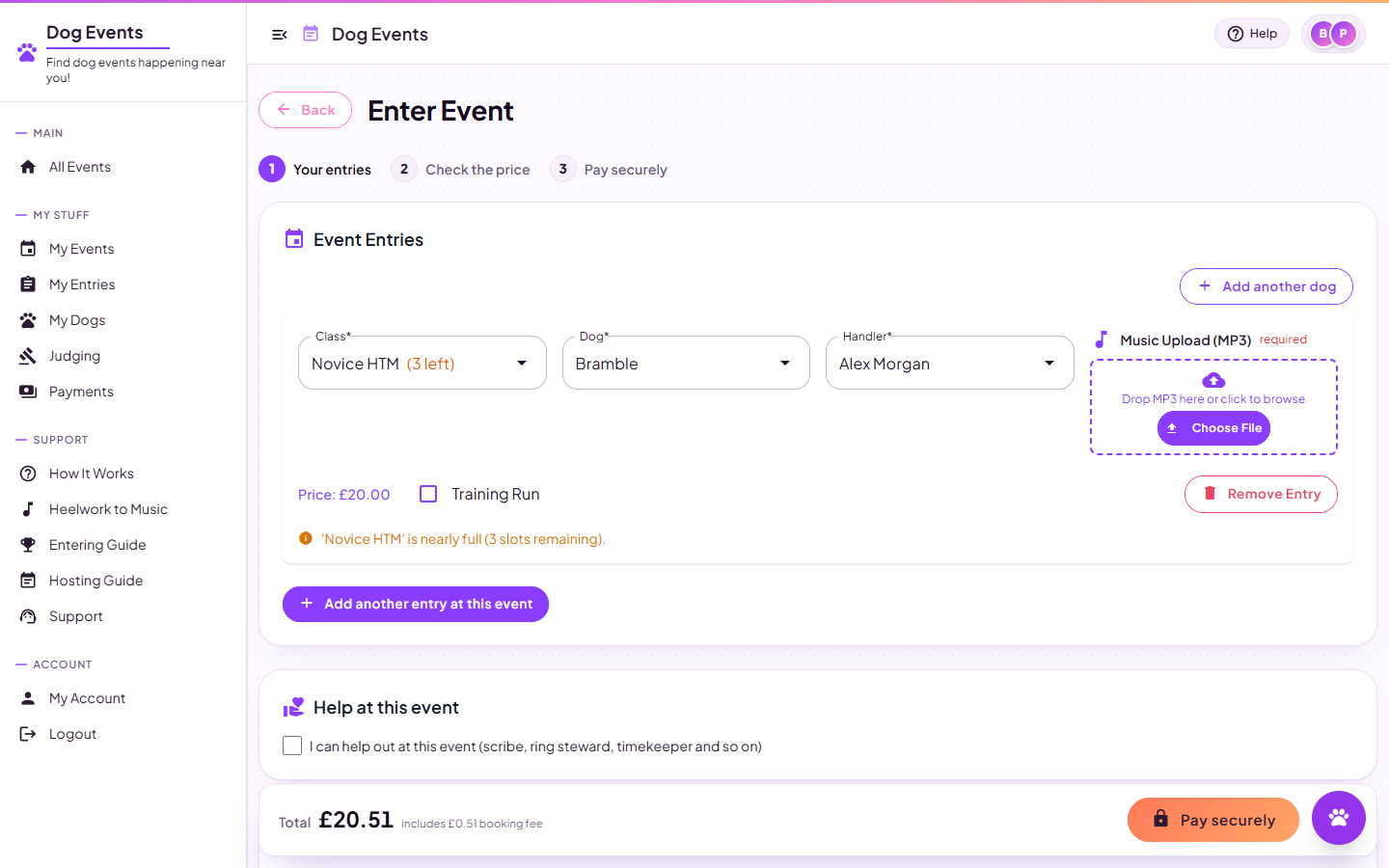
Class, dog and handler, with the music upload alongside when the class needs it.
No dog on your account yet? You don't need to leave the form. Press Add a dog, give their name, breed and sex, and they're added to your account and dropped straight into the entry. Kennel name, KC number and the rest can be filled in later from My Dogs.
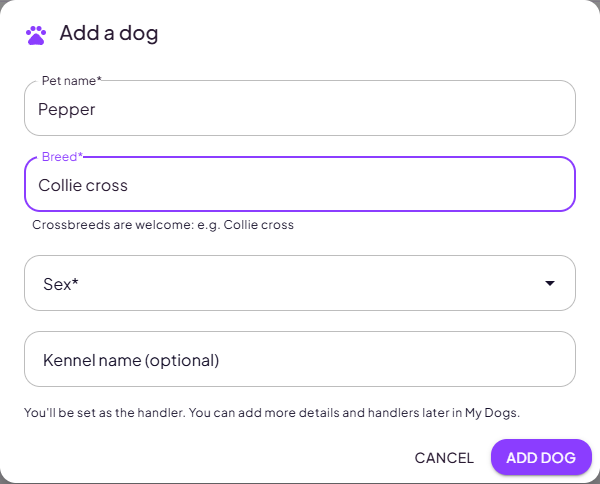
Adding a dog without leaving your entry. You're set as the handler.
For Heelwork to Music and freestyle your music is part of the entry. Upload the MP3 in the same row, or pick a track you've uploaded before, and it goes to the organiser with your entry and your place in the running order. We check the file plays and show its length; if it's longer than the class allows, you're asked for a shorter one. Whether music is required, optional or not needed is up to the organiser, and the form tells you which. Add the title and artist too: they go in the catalogue.

Music upload. Drop in your MP3 and it's attached to that entry.

Extras. Tick parking or camping if the organiser offers them.
- Training shows sell runs in sets: choose a dog and handler for each run in the set, and the organiser places them into classes.
- Workshops are booked per person: the attendee's name, a working or spectator place, and any dogs coming along.
- Anything missing is flagged before you pay, whether that's a class, dog, handler, music file or licence plate.
Check the price and pay
An itemised breakdown, then card payment on Stripe's secure checkout.
The price breakdown updates as you go: a line for each entry, a line for each extra, and a booking fee that covers card processing and running the site. The fee is charged once per event however many classes or dogs you enter, and if you come back later to add more entries to the same event, only card processing is added. The organiser receives their entry fees in full.
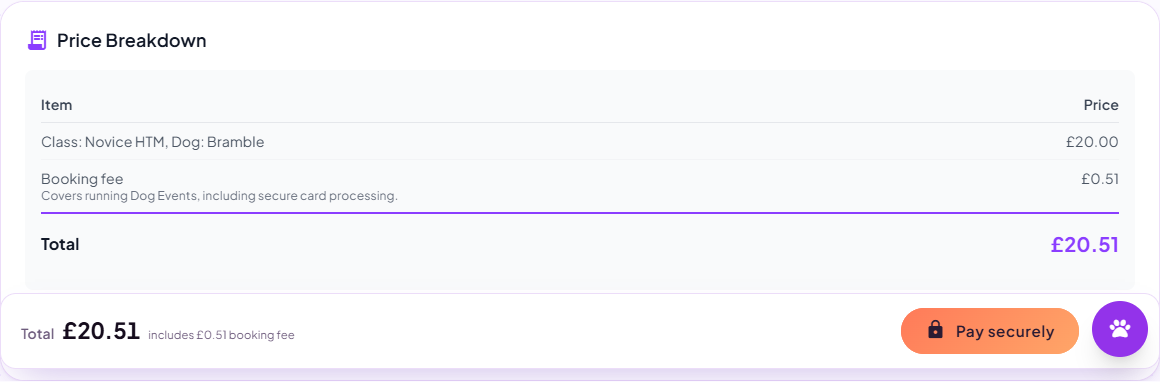
Every line itemised, with the total you'll actually pay.
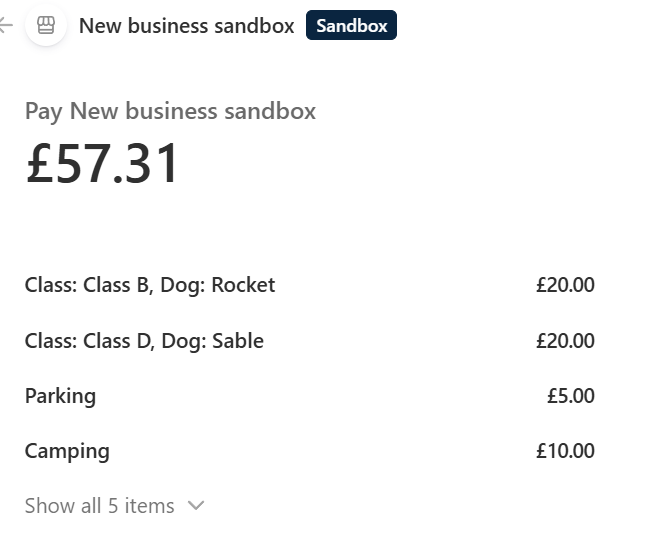
Payment on Stripe's checkout. Your card details never come to us.
Once you've paid you come back to a confirmation page listing what you've entered, whether each entry's music is in, your booking reference, directions to the venue and Add to calendar links for Google, Apple and Outlook. A receipt is emailed too.
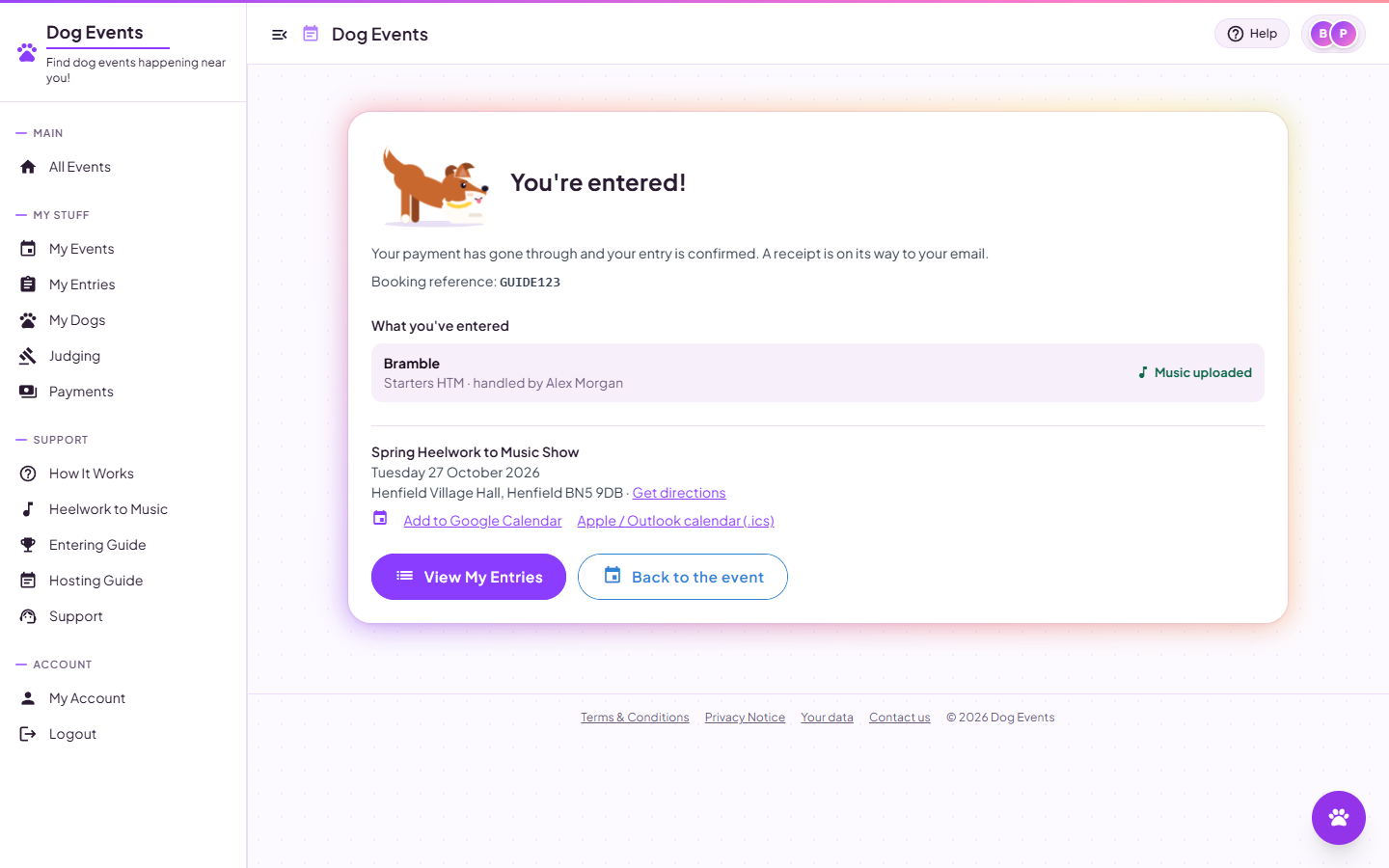
You're entered. Your entries, music status, directions and calendar links.
Your entries and your dogs
Signing in takes you to your own page: what's coming up, and what to do next.
Your home page shows your upcoming entries, any events you're running, and any classes you're judging, with quick links to find an event, create one, or see your dogs.
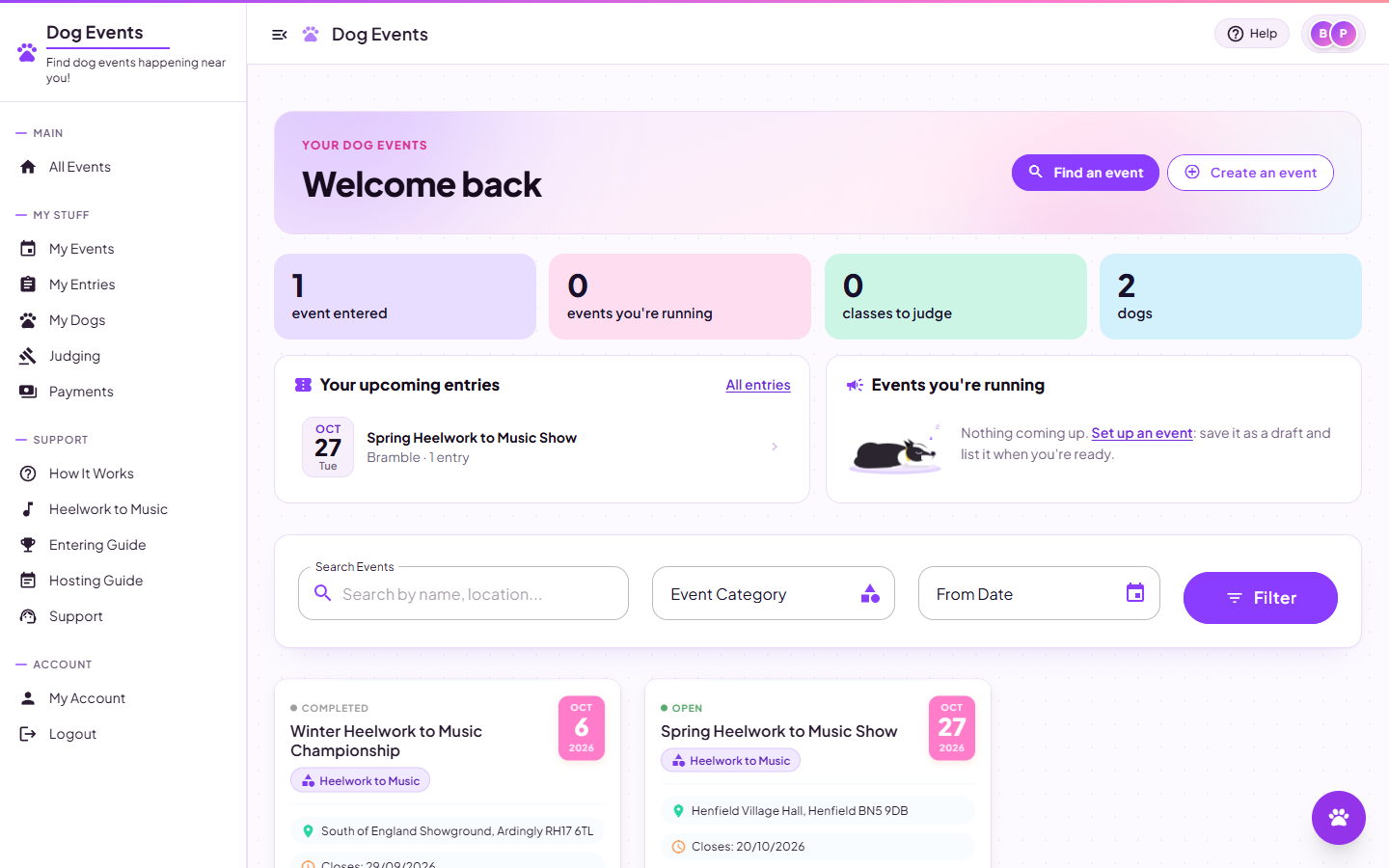
Your home page. Upcoming entries first, then everything else.
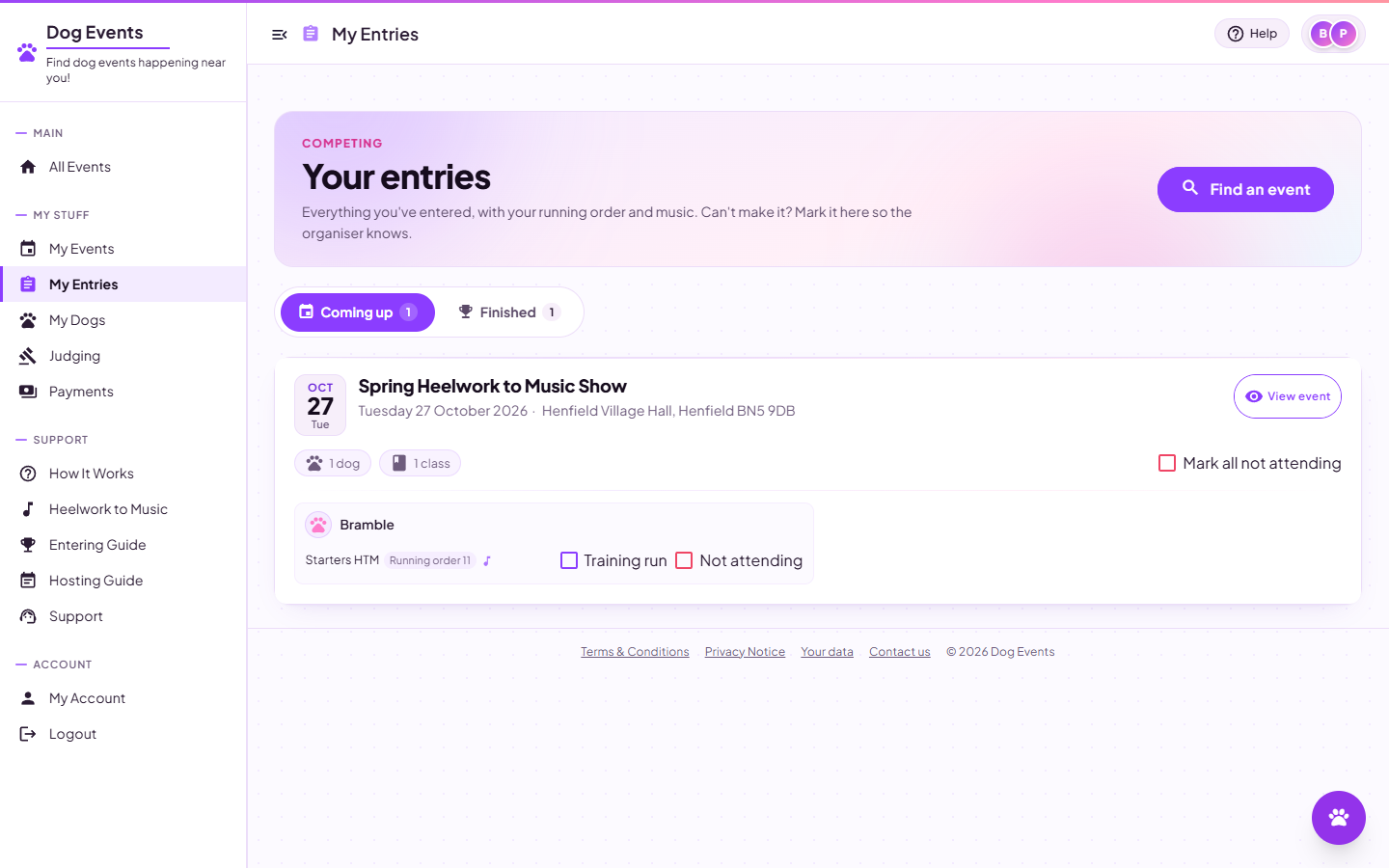
My Entries. Coming up and completed, grouped by event.
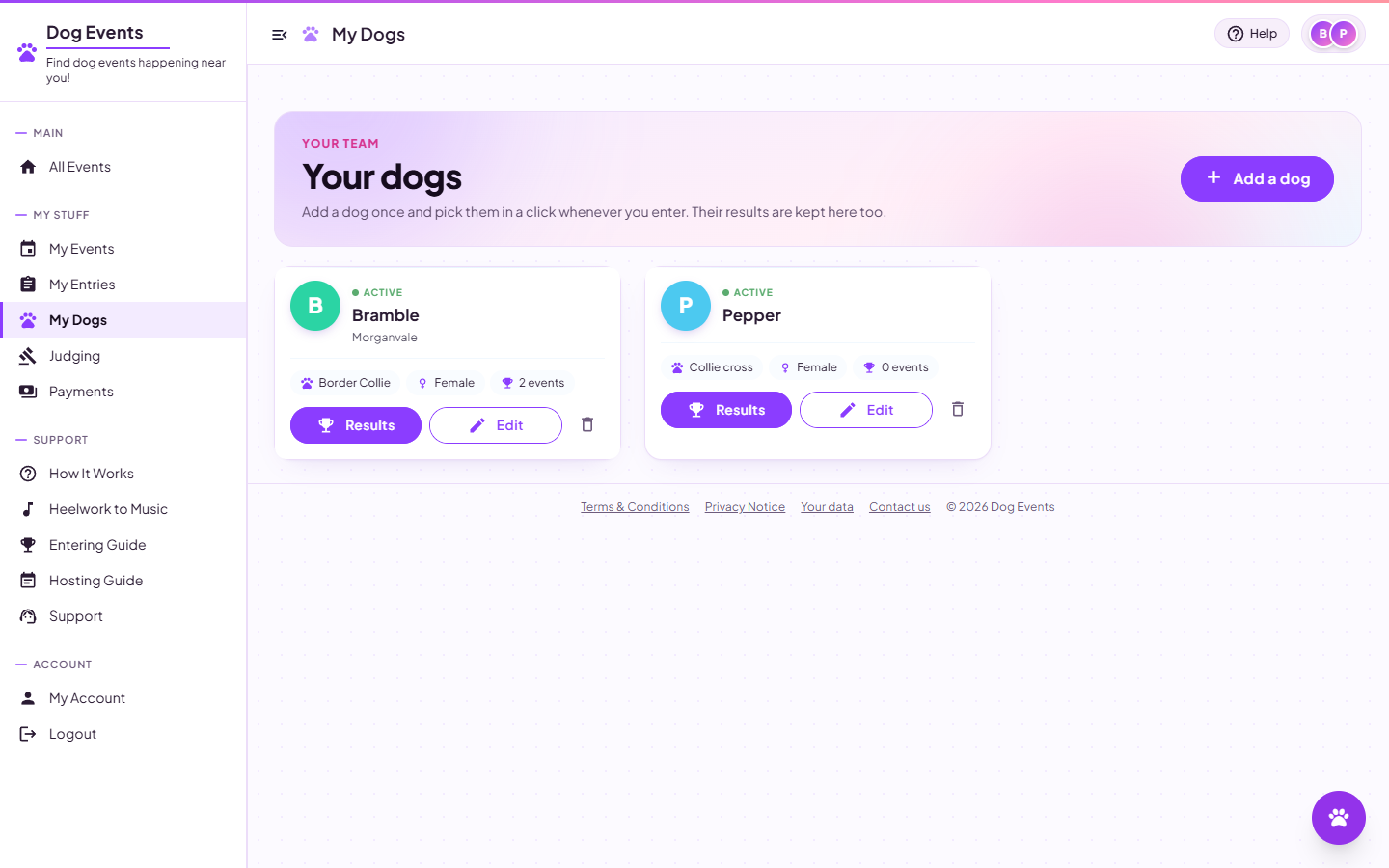
My Dogs. Every dog on your account, ready for the next entry.
- Handlers. Each dog can have several, which covers a dog run by someone else in the family.
- Retired dogs stop appearing in entry forms but keep all their history.
On the day, and afterwards
Follow the scores as they come in, and keep every result.
Scores stay private until the organiser switches on Show scores for a class. Some do that during the show, so you can follow along live, and some wait until afterwards. Once it's on, you can see the class's scoreboard and your own marks and placings. At the ringside, open it on your phone (you'll need a data or Wi-Fi connection). It refreshes itself as the judges confirm each score, shows when it last updated, and briefly highlights anything that's just changed. Organisers can put it full screen on a big screen, or share a QR code so people can scan it.
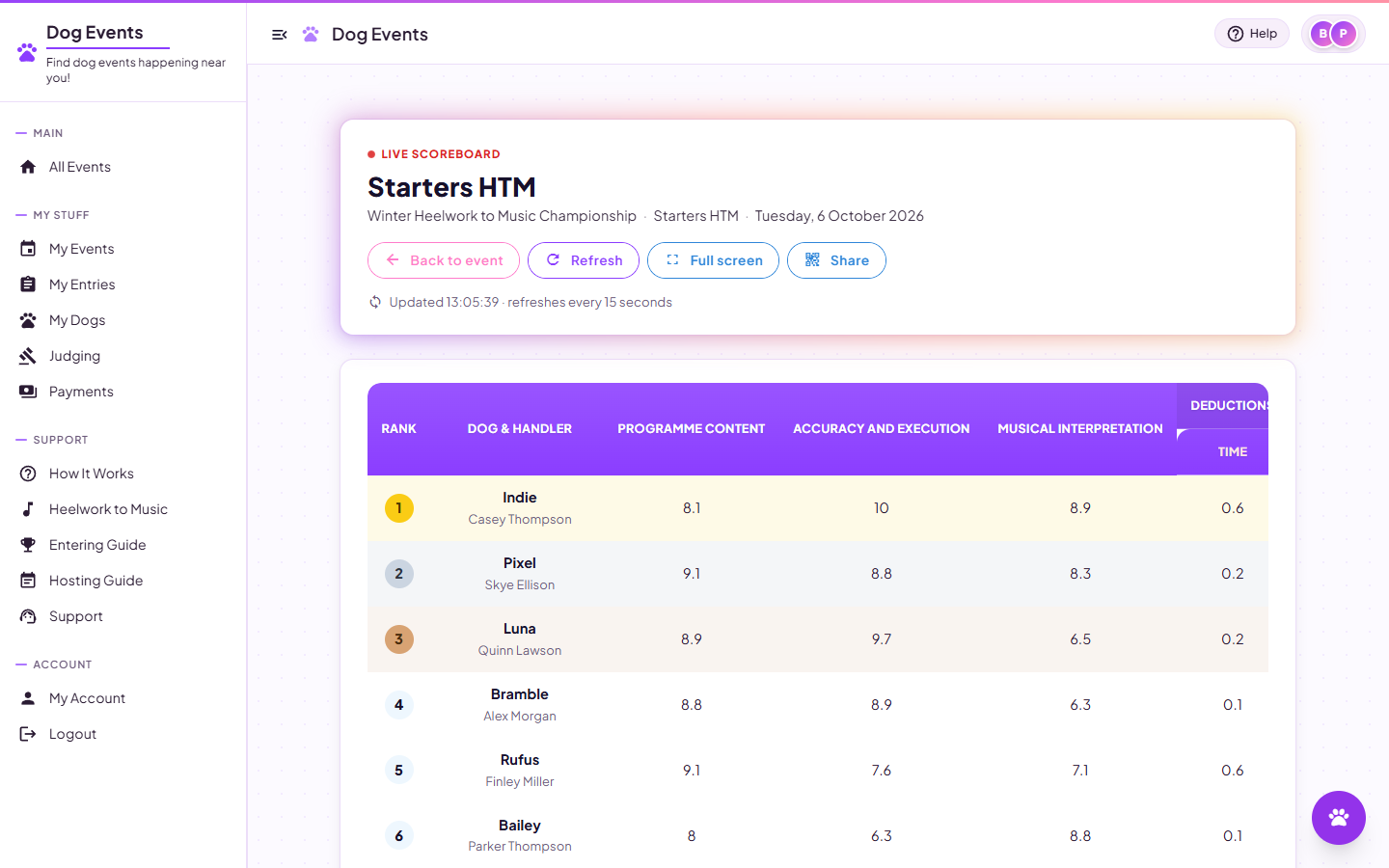
The live scoreboard. Rank, dog and handler, each judging category, and the total.
Afterwards every dog keeps its own history: the events it has entered, the classes, and the scores behind each result.
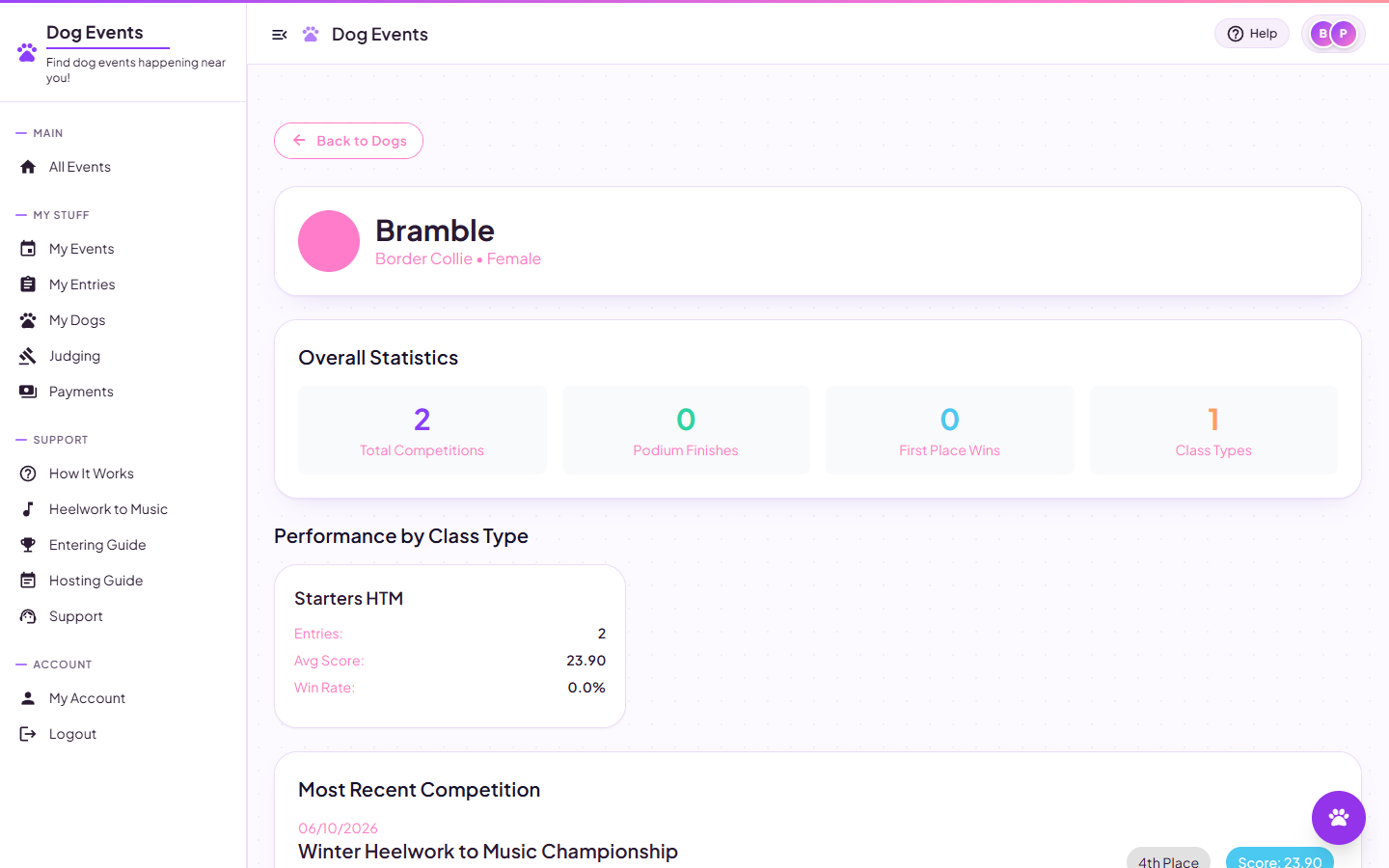
Each dog's history. What it entered, how it did, and the detail behind the scores.
What this does for you as a competitor
Look before you sign up
Every listed event has its own page with dates, venue, directions and prices, open to anyone.
Your dogs, saved once
Add a dog as you enter, then reuse it for every entry after. No retyping.
Music with the entry
Upload a new MP3 or reuse one you've entered with before. Its length is checked against the class limit.
The price up front
An itemised breakdown before you pay, and one booking fee per event rather than per class.
Straight into your calendar
Add to Google, Apple or Outlook from the confirmation page, with directions to the venue.
Results as they happen
Follow the scoreboard from your phone once the organiser shows scores, and keep every result in your dogs' history.
Common questions
Does it cost anything to have an account?
No. Accounts are free. You only pay when you enter an event, and you see the full total before you confirm.
What is the booking fee?
A small fee added at checkout that covers card processing and running the site. It's charged once per event, however many classes or dogs you enter, and the organiser still receives their entry fees in full.
What if the class I want is full?
A full class says so and can't be chosen. Some organisers switch on automatic splitting, which opens a second section of the class when it fills, and then you can still enter.
Can I enter several dogs and classes at once?
Yes. Add a row for each entry in the same form and pay for them together.
Can I change or cancel an entry?
That's up to the organiser. Each event can state its own refund policy, shown on the event page. If the organiser hasn't stated one, entries are non-refundable, so it's worth double-checking before you pay. To change or withdraw an entry, contact the event organiser.
Do I need an account to see the scoreboard?
Yes. Running orders and results name the entrants and their dogs, so they're for signed-in users. Signing up is free and takes a minute.
Is this only for Heelwork to Music?
Heelwork to Music is where it started, which is why music handling is built in, but the same entry, payment and scoring works for other disciplines, training shows and workshops.
What about flyball?
Not yet. Flyball is teams racing head to head in heats over several rounds, and the site currently ranks individual entries once, so there's nowhere to put teams, heats or divisions. If you run flyball and want it sooner, open a support ticket and tell us how your league scores.
Ready to enter?
Find an event, and you're a few clicks from your first entry.