Creating and hosting an event
Set up a competition, training show or workshop, take entries online or your own way, build the running order, let judges score from their own phones and share the results. It's free for organisers, and you can use as much or as little of it as you like.
Create the event
Say what you're running, then fill in the details. It saves as a private draft.
Register for free, then choose Create an event. The first question is what you're organising: a competition with classes, judges and placings, a training show that sells practice runs in sets, or a workshop with working and spectator places. You can also start by copying one of your previous events. The form that follows only asks for what applies to that kind of event.
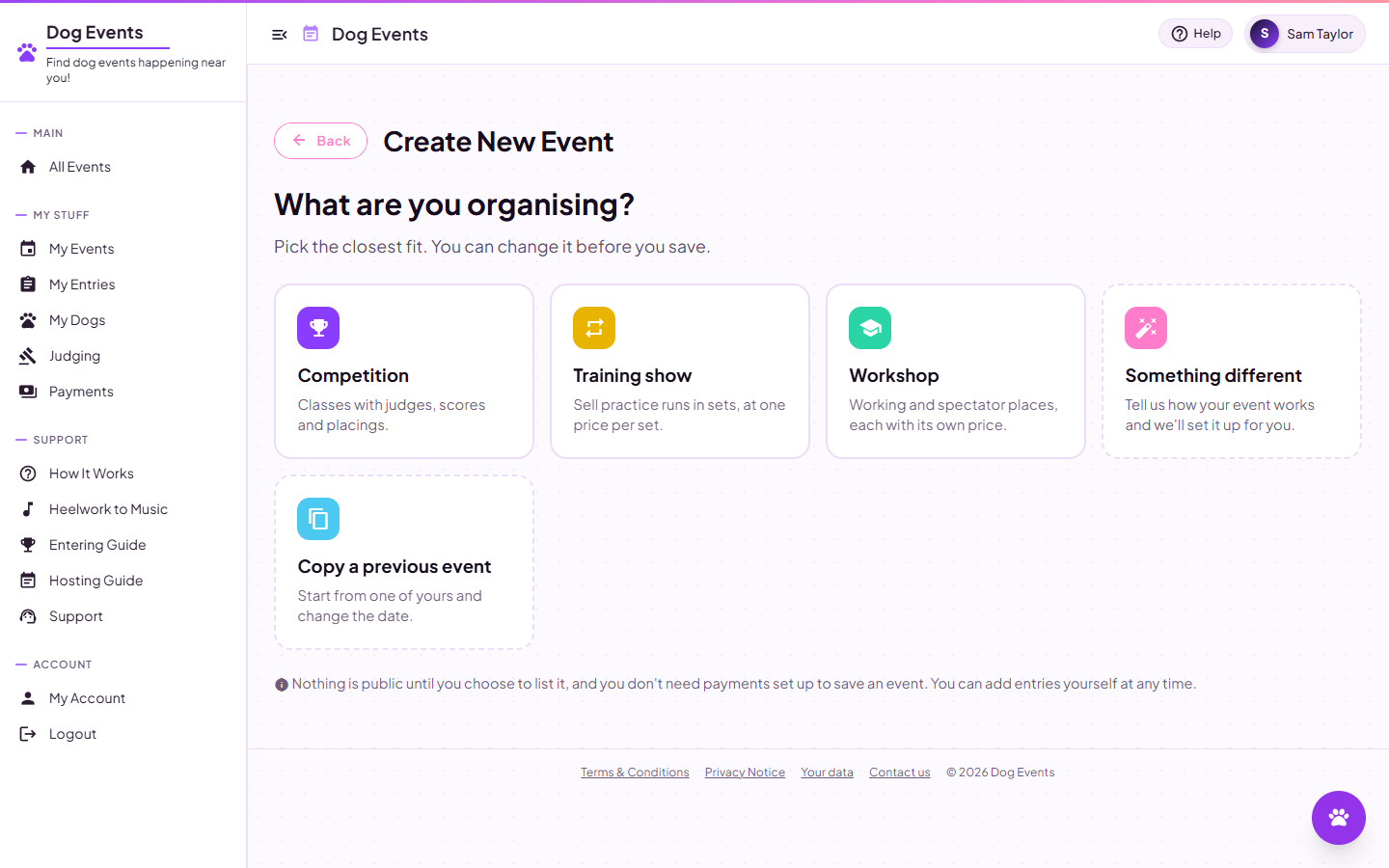
Step one: what are you organising? The rest of the form follows from it.
Event Information covers the title, venue, date and description, and when online entries open and close. A training show asks how many runs make a set; a workshop asks for a working price and a spectator price. For all of them you decide whether music is required with every entry, optional, or not needed.
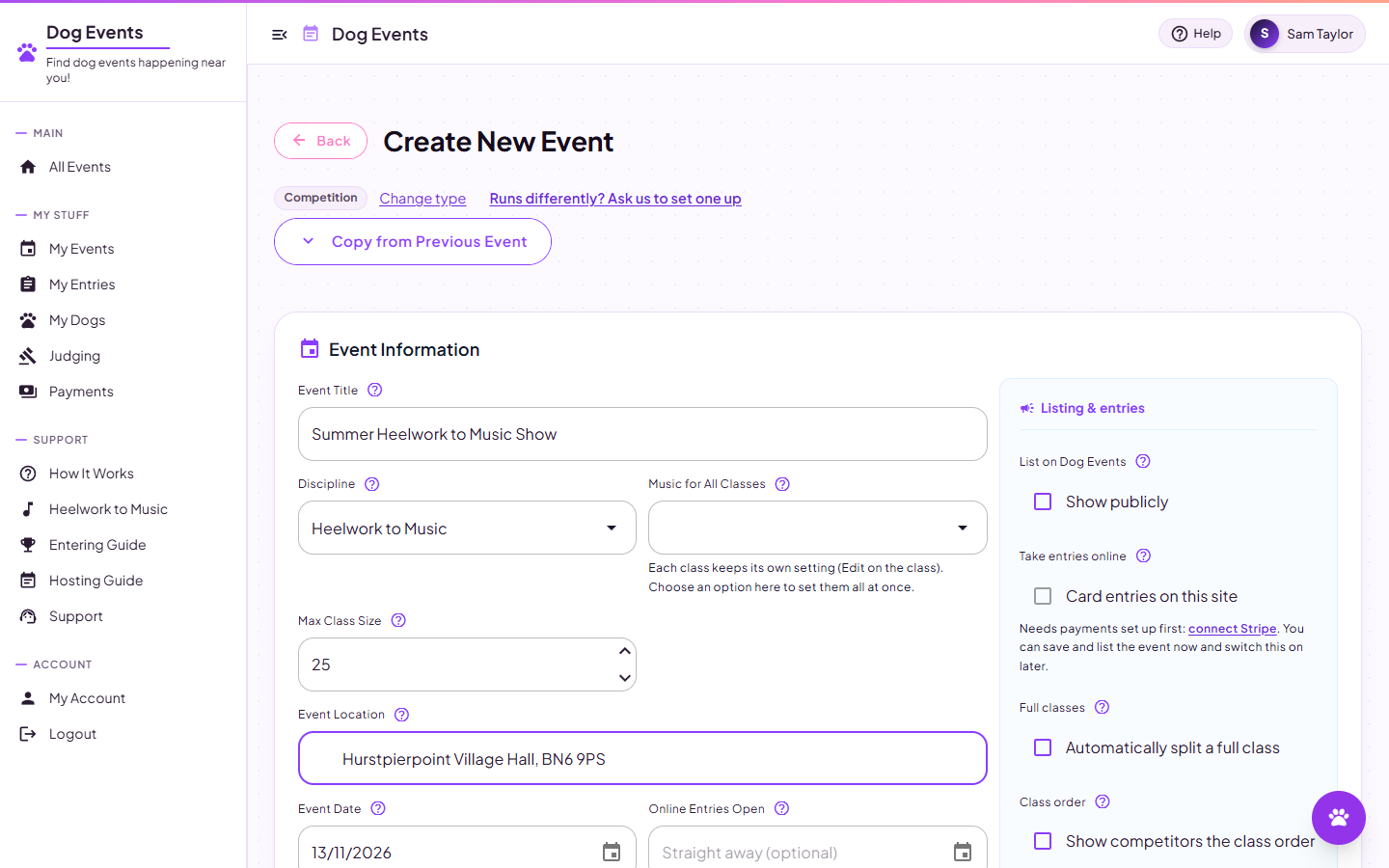
The event form. Nothing is public until you list it.
Pricing and Extras sets the standard entry price, an optional member price, and extras such as parking or camping that entrants can add to the same payment.
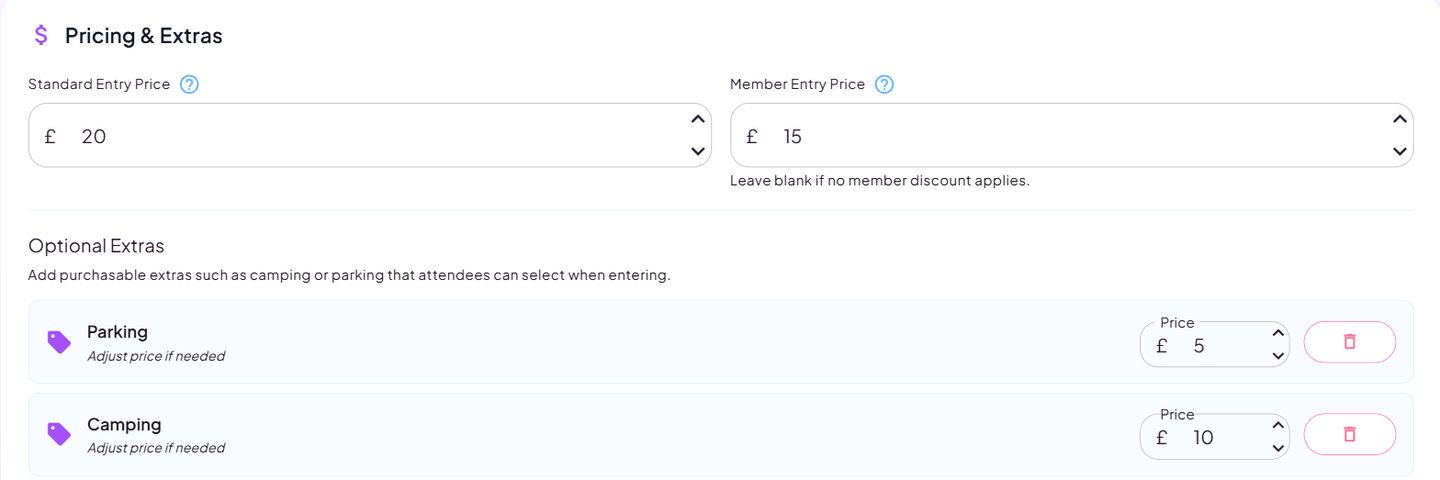
Prices, member prices and optional extras.
- No payments setup needed to start. Create, save and even list an event before you've connected Stripe.
- Practice events. Tick Keep out of public listings to try things out; a practice event never appears in event search.
- Everything can be changed afterwards, including prices and dates.
Add your classes
Tick the classes you're running. Training shows and workshops get theirs automatically.
After saving you land on your event's page, with Overview, Classes and Settings tabs and a short checklist across the top showing what's done and what's next. For a competition, open Classes, choose Add Class and tick the class types you're running. Any class type you make up is remembered for next time. A training show gets its class, and a workshop its working and spectator places, as soon as you save.
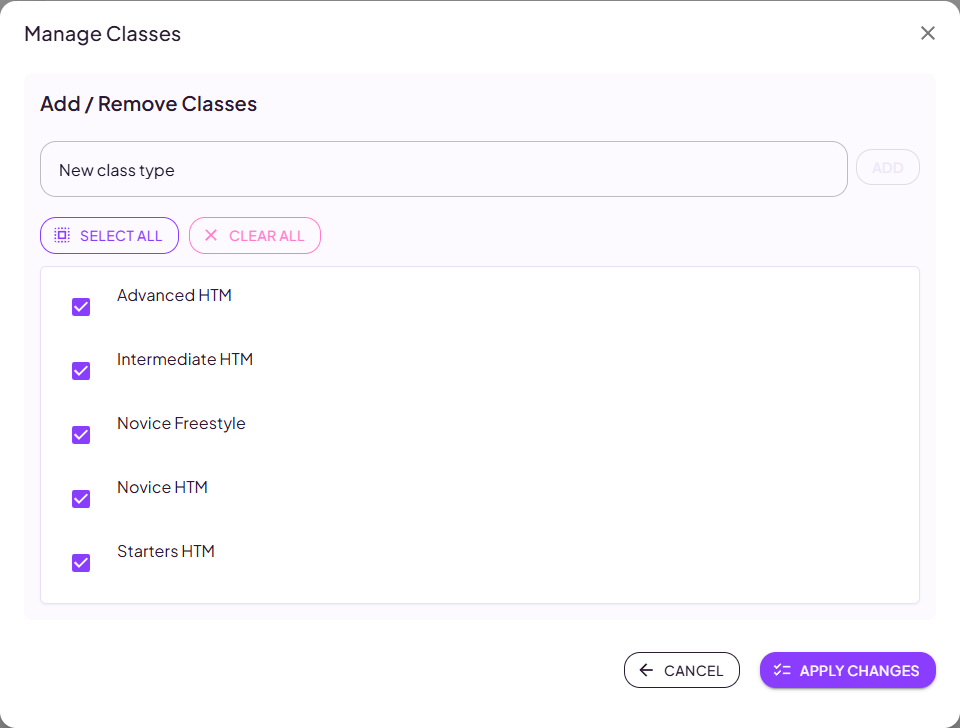
Tick what you're running, or type in a new class type.
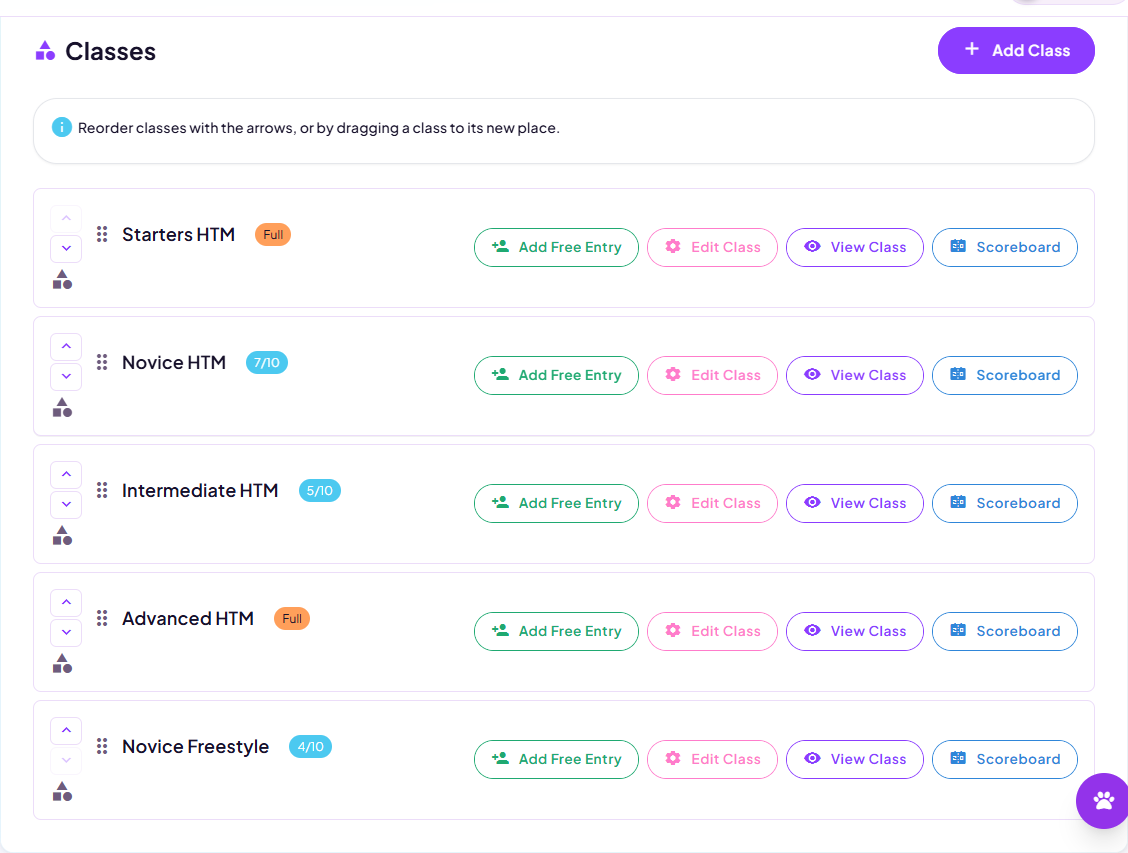
Your classes, each showing entries against its capacity.
Open a class to rename it, change its capacity, set its music requirement, choose when to show scores, and add its judges and helpers.
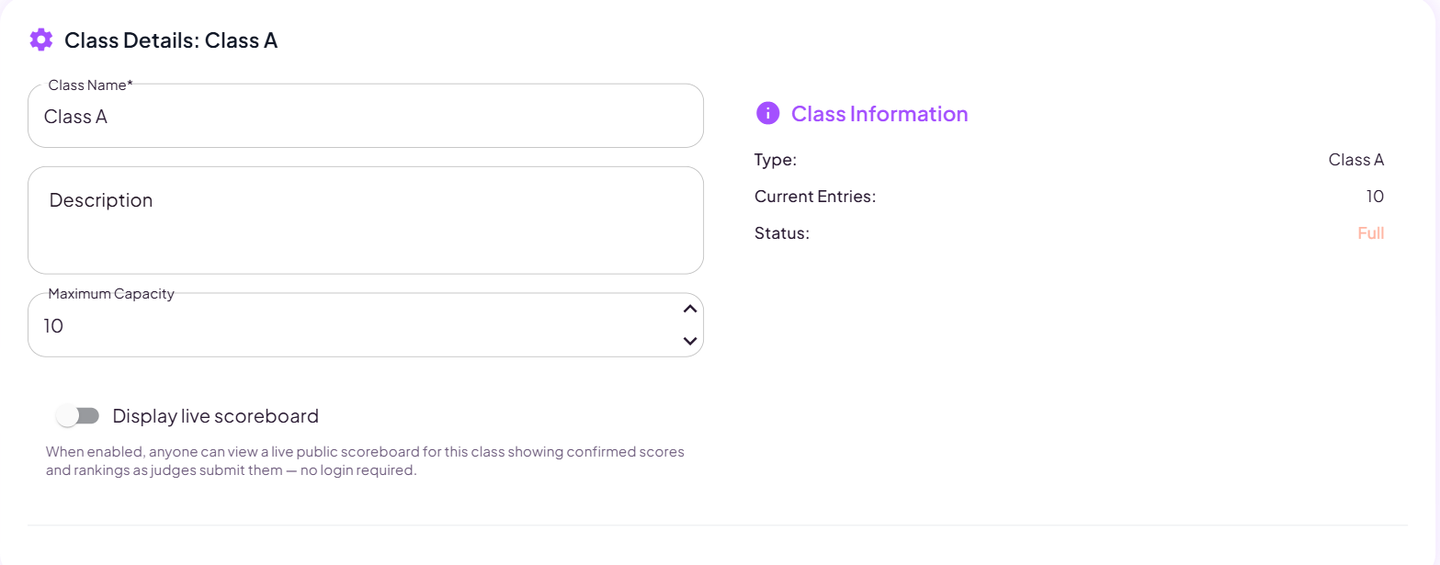
Per-class settings: name, capacity, music, showing scores, judges and helpers.
- Full classes can split themselves: switch on Automatically split a full class and a second section opens when one fills.
- Class order is drag and drop on the event page, and you choose when competitors can see it.
Add your judges and helpers
Assign people by email. Judges get their own login and score their own classes.
Add a judge to a class with their name and email. If the email belongs to a Dog Events account it's linked straight away, shown as Account linked; if not, the link forms when they register. Helpers work the same way, with a role from the standard list: ring steward, scribe, score runner, timekeeper and so on. They appear on the event page and in the catalogue, so everyone knows who's where.
- More than one judge per class. Each scores independently, and a result is final once they've all confirmed.
- Scores are protected. A judge who has recorded scores can't be quietly removed from the class.
- Clashes are flagged. If a judge or helper is also entered near the start or end of the running order, you're told who and where.
List it, and choose how to take entries
Listing and taking entries online are separate choices. Use Dog Events for entries, or keep your own way.
The Listing & entries switches, on the event form and on your event's Settings tab, are two separate choices. List on Dog Events puts the event in public event search with its own page, which anyone can see without an account. Take entries online lets people enter and pay by card. You can list an event without taking entries online. If people already book on your own website or another booking site, leave online entries off and add that address under Booking on another website: the public page's button then sends them there.
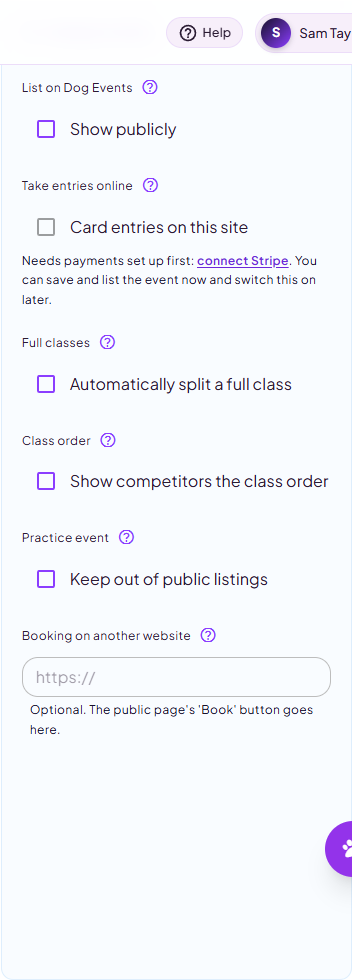
Two separate switches: listed publicly, and taking card entries.
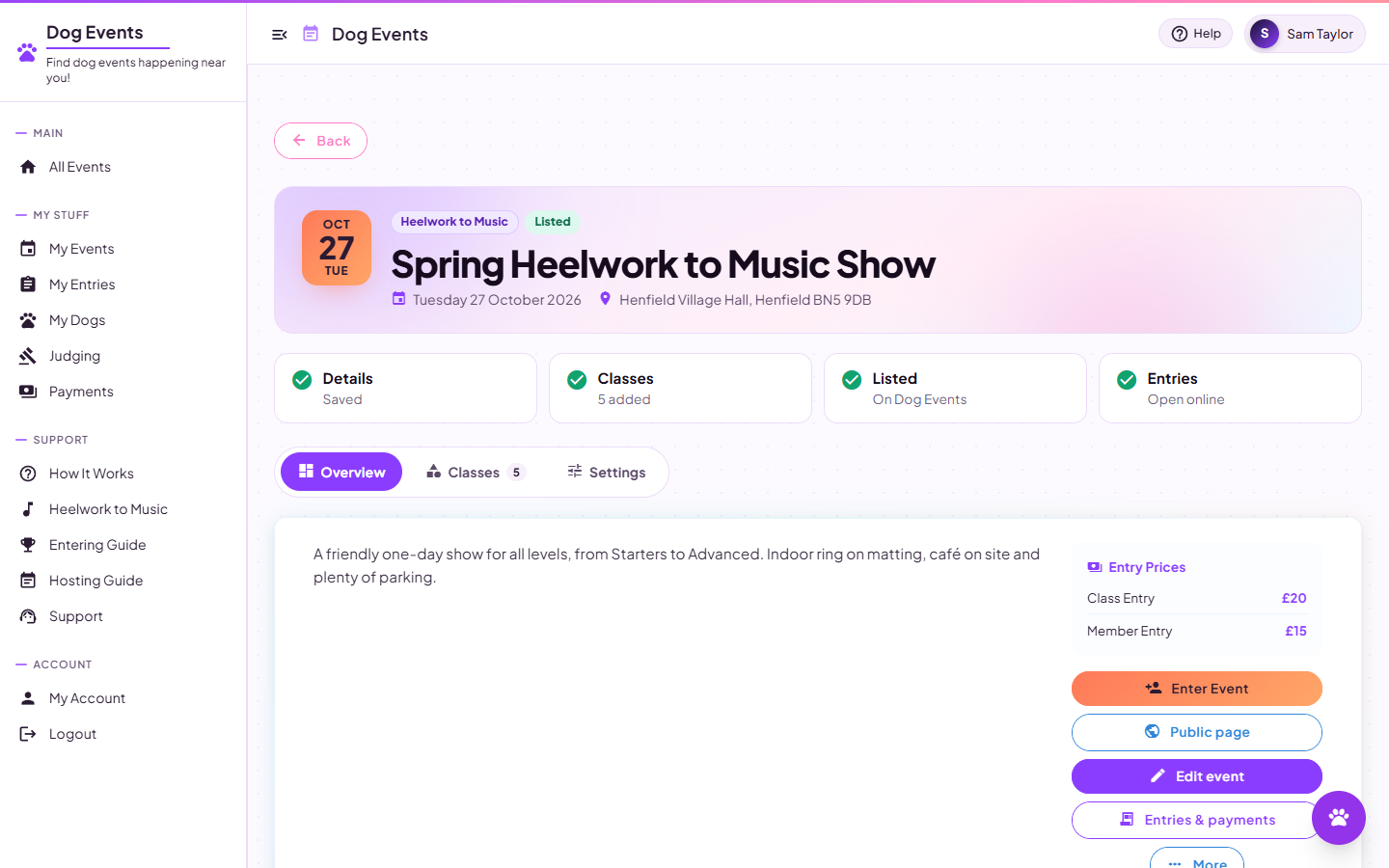
The checklist on your event page, with the next thing to do.
Online entries are card payments straight into your own Stripe account. Connect one from the Payments page (it takes a few minutes on Stripe's own pages) and the switch becomes available. You never handle card details, and the entry fees and extras you set arrive in full: entrants pay a small booking fee on top.
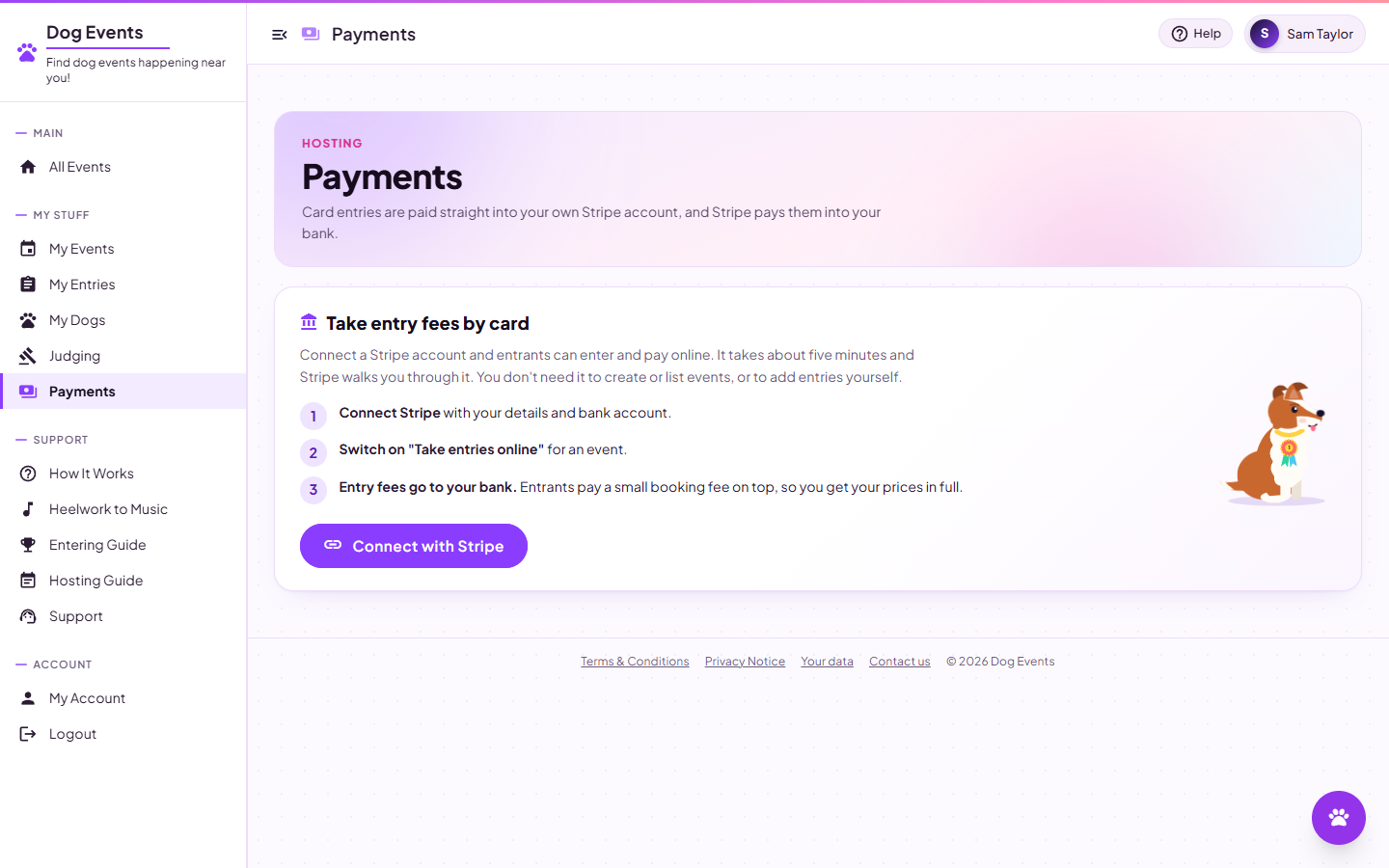
Payments. Connect Stripe once to take card entries.
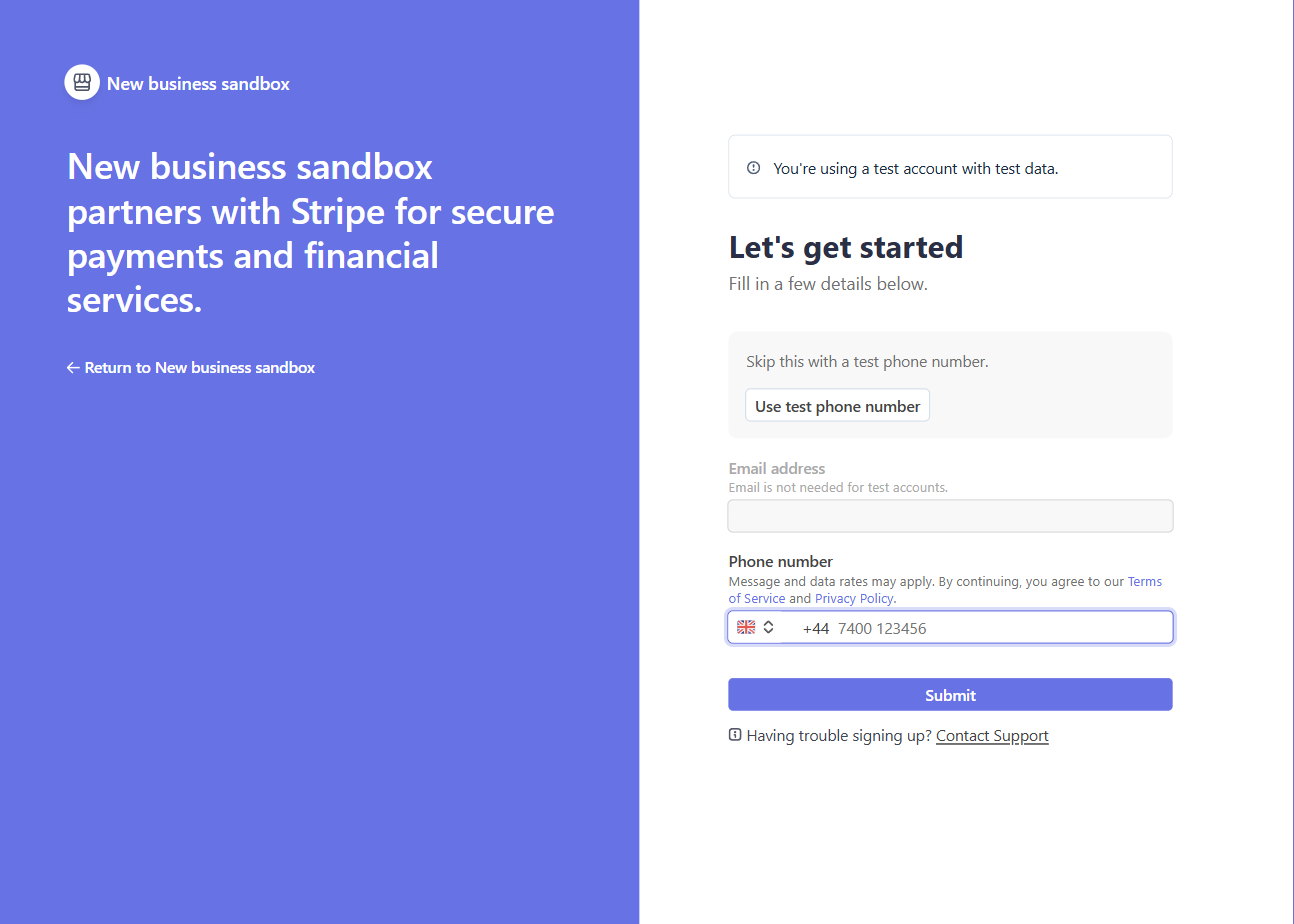
Onboarding happens on Stripe's own pages: your details and payout bank account.
Once listed, the event has its own public page with the date, venue and directions, prices, and either an Enter this event button, a Book on the organiser's website button if bookings go to your own site, or a note that you handle entries directly.
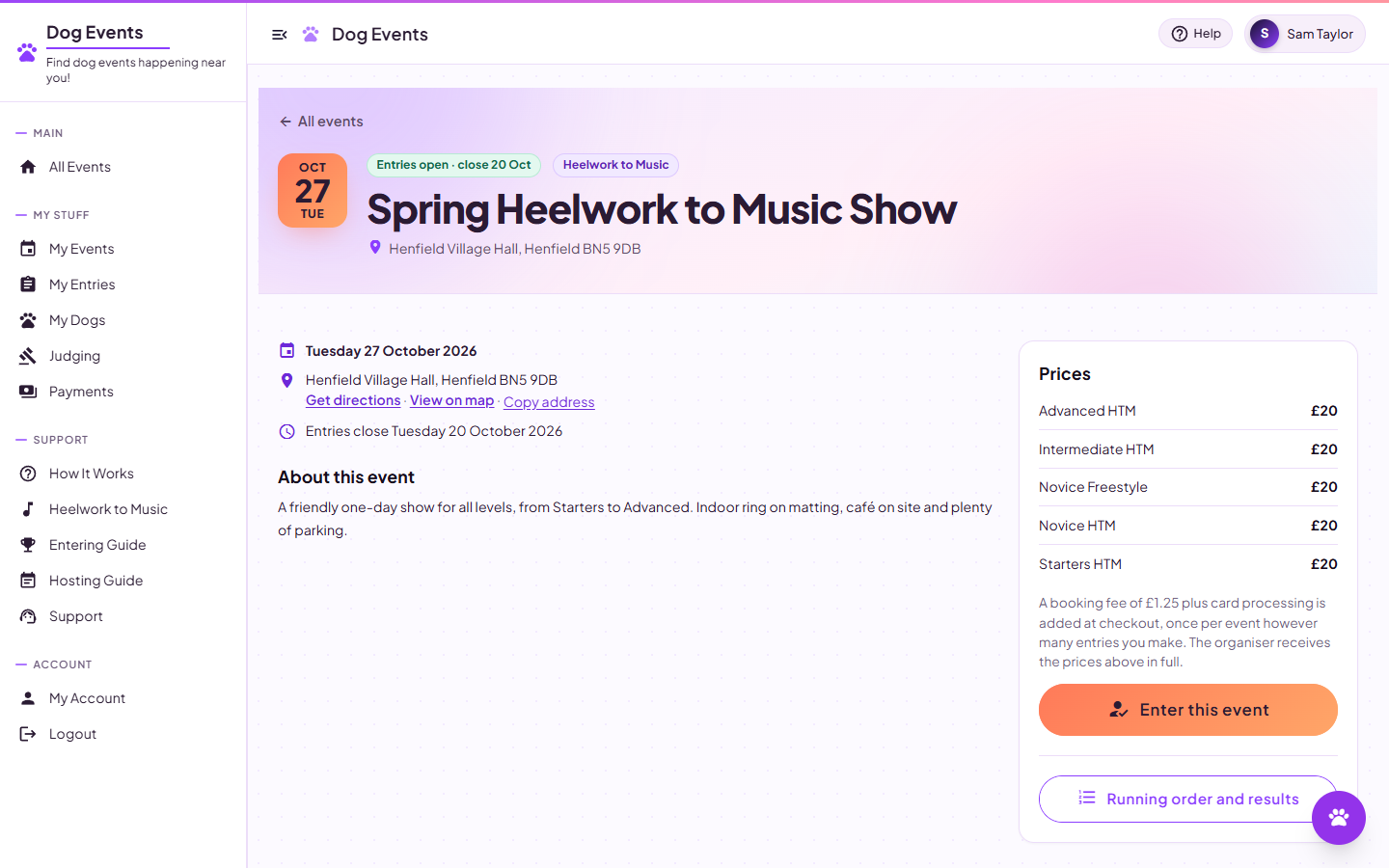
Your event's public page, shareable with anyone.
Run the entries
Running order, entries you add yourself, emails, and paperwork to print.
Open a class to see its entrants in running order, with their dogs, handlers and music. Randomise Order makes the draw in one click, or move people with the arrows or by dragging; it saves as you go, and Undo takes back the last change. If a handler is also stewarding or judging nearby, a warning says who and where.
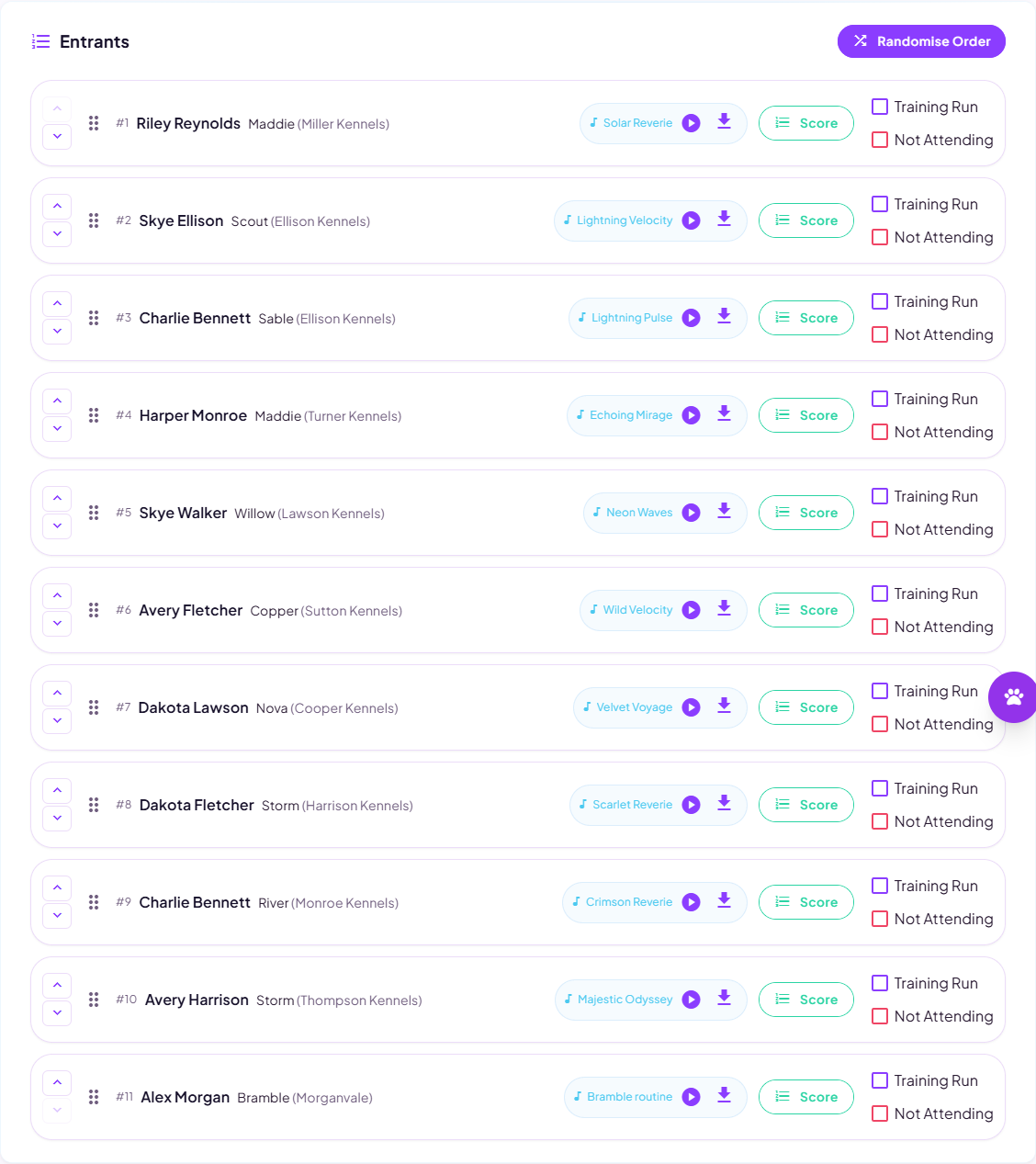
The running order. Arrows or drag, randomise, and undo.
- Works at the ring. The arrows work on a phone or tablet, and with a keyboard.
- Two people editing? If someone else changed the order since you opened it, your change is stopped and the latest order shown, rather than either of you overwriting the other.
Entries you add yourself are free and never go near card payment: postal or emailed entries, late entries, complimentary places or demo dogs. Fill in the owner and dog, and they join the class like anyone else. The owner doesn't need to sign up.
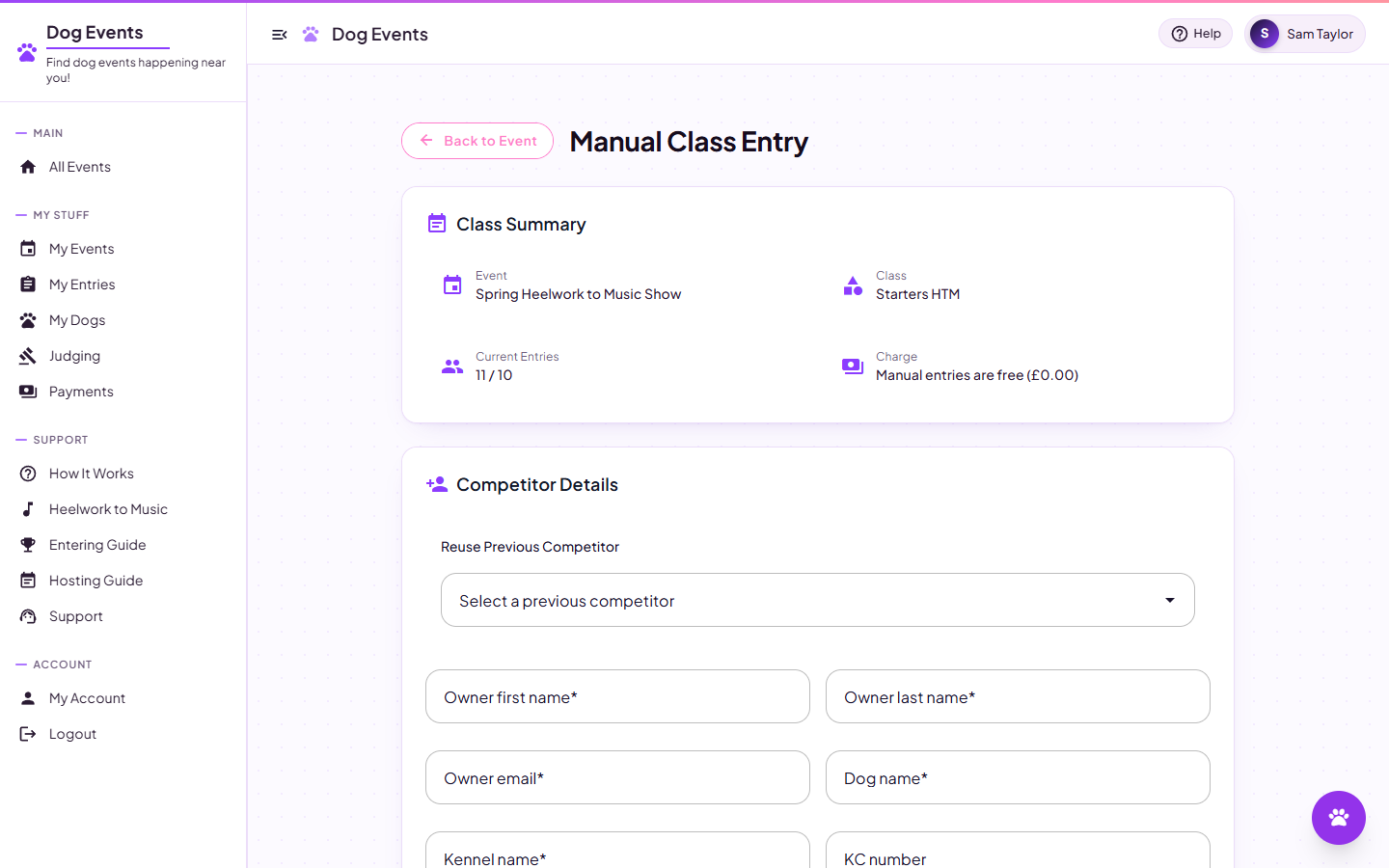
Adding an entry yourself. Free, and the entrant doesn't need an account.
Email Participants reaches everyone at the event, or one class, without exporting anything. Two PDFs cover the paperwork: a catalogue with the schedule, classes, running order and your own notes, and a results sheet once scoring is under way.
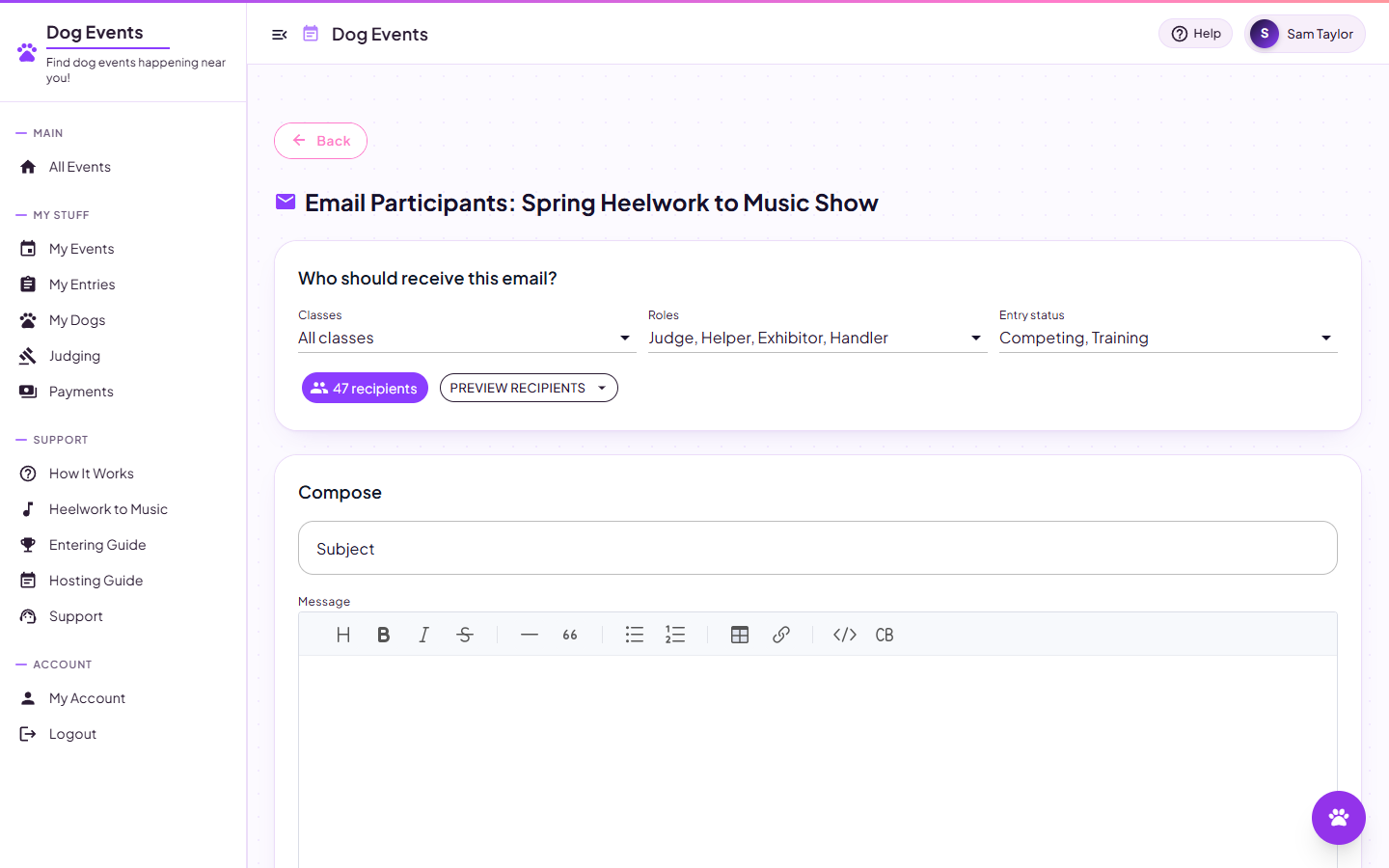
Email the whole event or a single class.
Score and share the results
Judges score from their own logins, or you enter the marks. Results update as they're confirmed.
Scoring uses your discipline's judging categories, each with a maximum mark; deductions subtract rather than add, and totals are worked out for you. A judge who signs in sees Judging with their classes and progress, and scores and confirms one competitor at a time. You can also enter scores yourself from the class page.
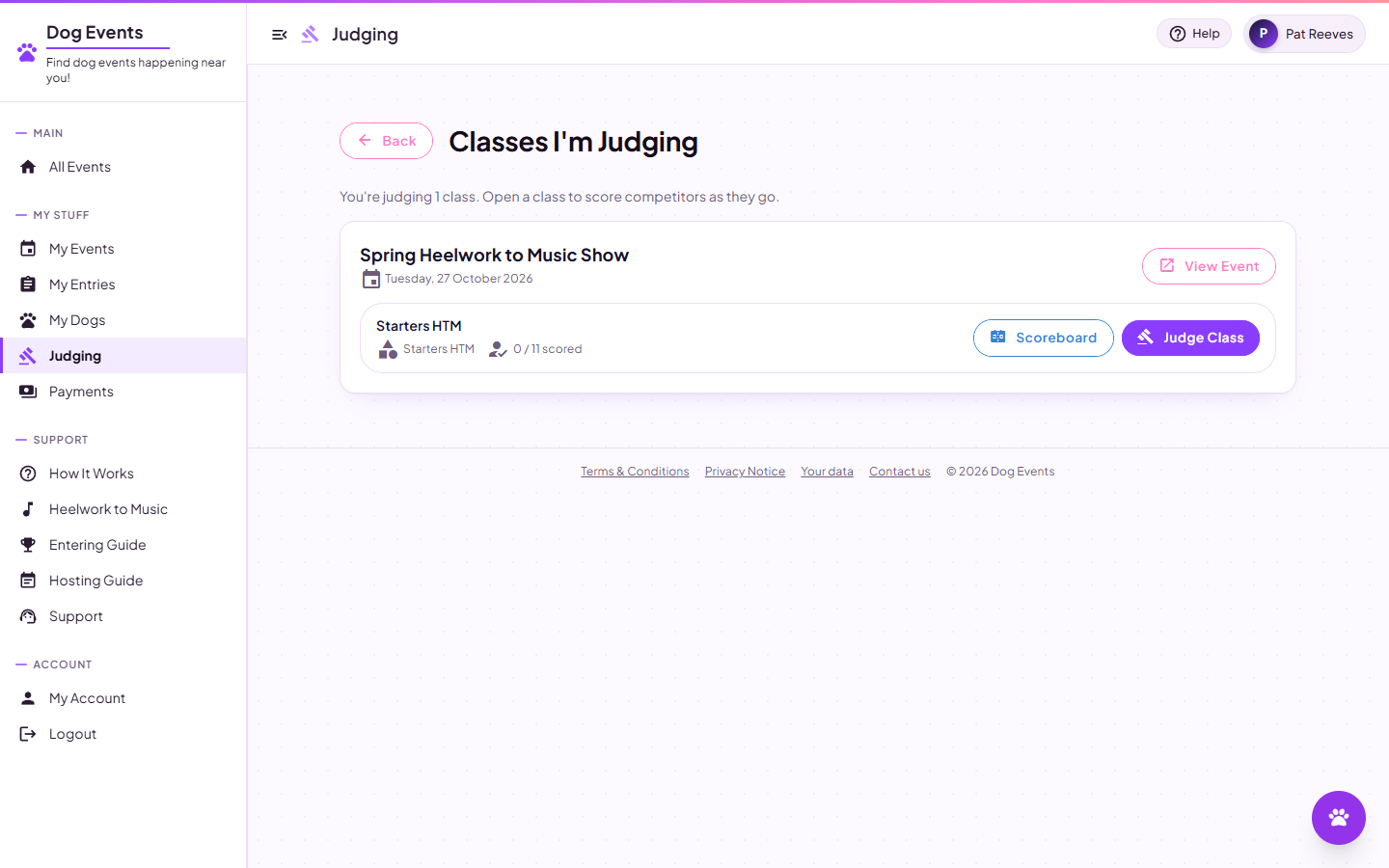
The judge's own page: their classes and progress, nothing else.
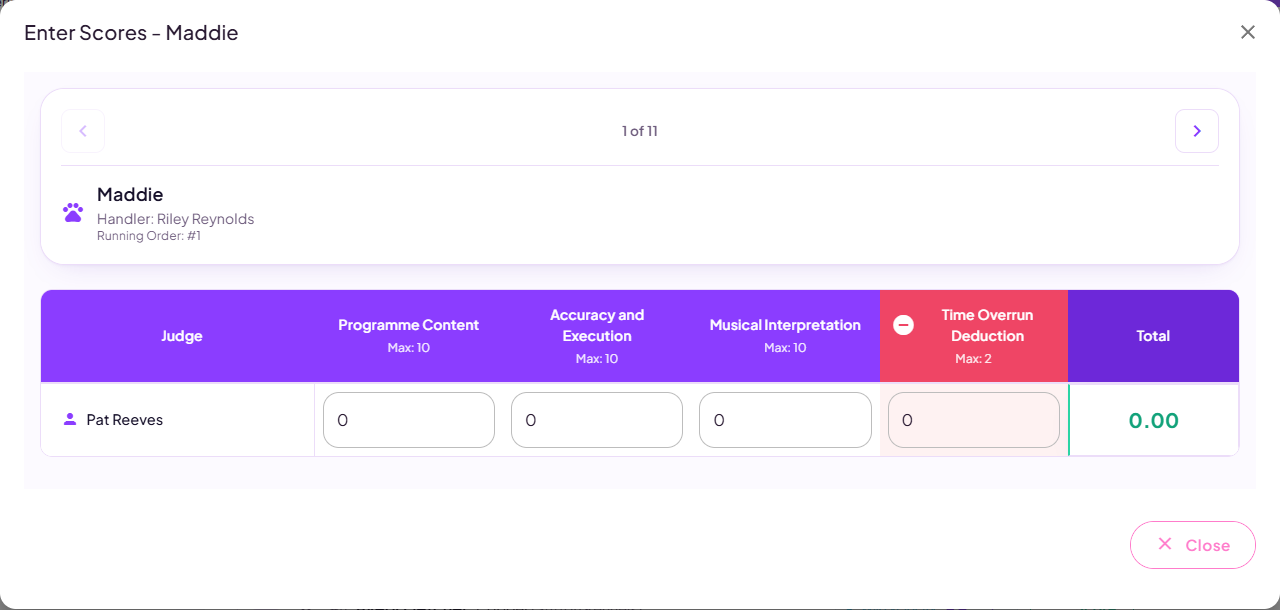
Score entry. A column per category, totals worked out as you type.
Scores stay private until you switch on the class's Show scores setting. You can do that during the show, so people can follow along live, or afterwards. Once it's on, signed-in competitors can see the scoreboard and their own marks and placings. The scoreboard refreshes itself, shows when it last updated, and highlights what's just changed. Put it full screen on a big screen at the ring, or use Share for a QR code people can scan. When you're done, Download Results gives you the ranked tables as a PDF.
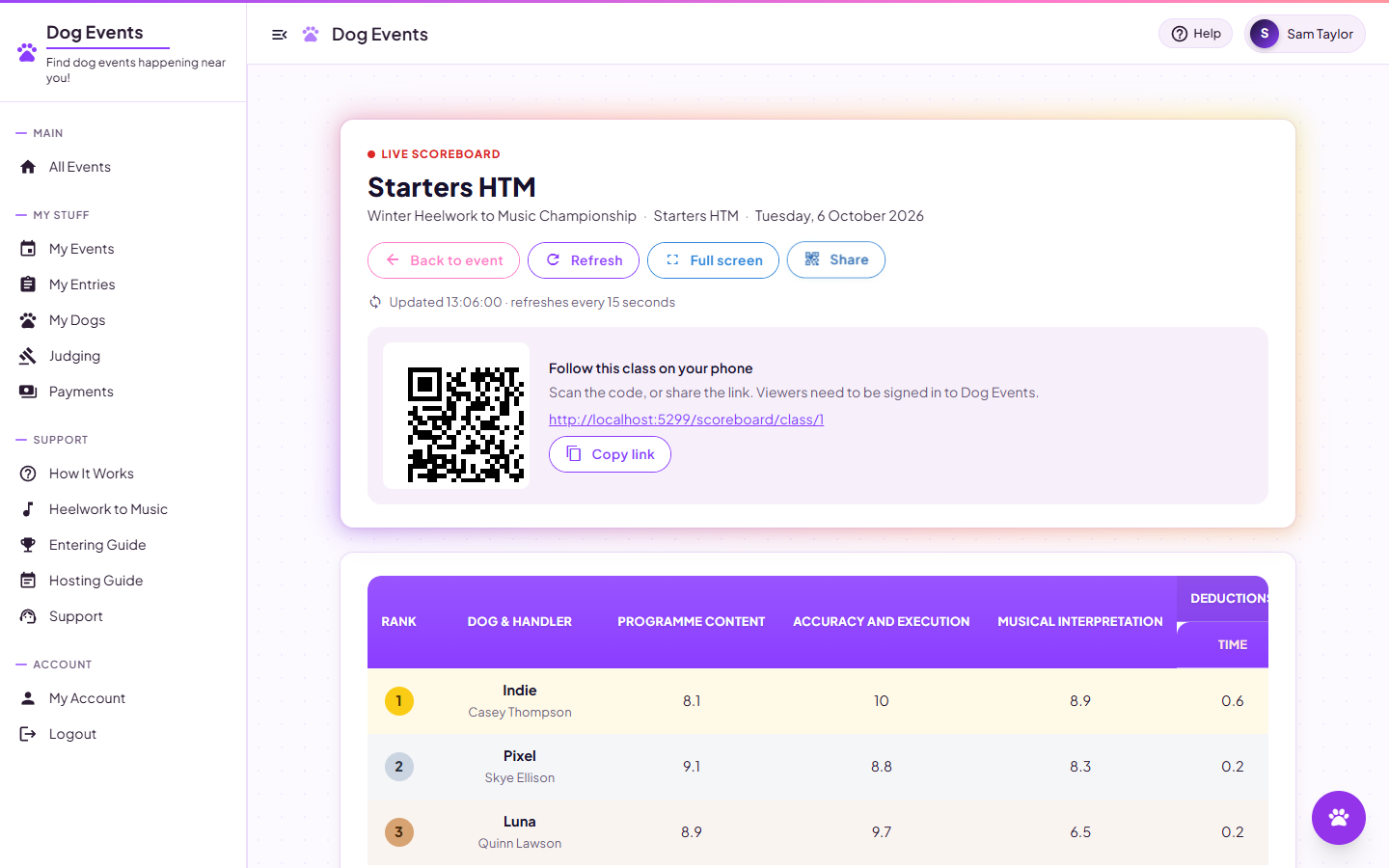
The live scoreboard, with its QR code for people at the ring.
On the day: a quick checklist
Phone scoring and the live scoreboard need an internet connection at the venue. A little preparation means a poor signal won't hold up your show.
- Check the signal before the day. Find out whether the venue has a good mobile signal or Wi-Fi near the rings. The live scoreboard and judges scoring on their phones both need a connection.
- Download all the music before you travel. Each class page has a zip of that class's music, so you aren't relying on the venue's connection to play it.
- Print a paper backup. The catalogue and running orders, plus Print score sheets (blank judge score sheets) and the Music list from each class page.
- If the signal drops, carry on with paper. Judges write their marks on the score sheets, and you enter them afterwards from the class page.
What this does for you as an organiser
Free for organisers
No subscription and no setup fee. Card entries are paid into your own Stripe account, and your entry fees arrive in full.
Use only what you want
Take entries online, or keep your own way and add them yourself. Everything else works either way.
Set up for your kind of event
Competitions, training shows sold in sets, and workshops with working and spectator places.
Music collected for you
Required, optional or not needed: your choice. Uploaded tracks stay with each entry and its running-order place.
A running order you can trust
Randomise, drag or use the arrows, undo, and get warned about clashes and conflicting edits.
Judges with their own logins
Judges score and confirm their classes on their own devices, and you can still enter marks yourself.
Live scoreboards
Per class, refreshing as scores are confirmed, with full-screen mode and a QR code to share.
Catalogue and results PDFs
A printable schedule and running order with your own notes, and ranked results afterwards.
Common questions
What does it cost to run an event?
Nothing. Entrants pay a small booking fee on top of your entry fees when they enter online, which covers card processing and running the site. Entries you add yourself cost nothing at all.
Do I have to take entries through the site?
No. Leave online entries off and add entries yourself as they come in, by email, post or another site. You can still use the running order, music, judging, scoreboards and PDFs.
When do I get the money?
Card payments go into your own Stripe account as entries are made, and Stripe pays out to your bank on its normal schedule. The Payments page shows the totals per event.
Do I have to publish straight away?
No. Events start as private drafts. Build the whole thing, then list it when you're ready, and choose separately when online entries open. You can unlist it again the same way.
Can I try it out first?
Yes. Tick Keep out of public listings on an event and it becomes a practice event: it works fully but never appears in event search.
What if my discipline isn't listed?
Type it into the event form and it's created with your event. If it needs its own scoring categories, ask us and we'll set them up.
Does it handle timed disciplines?
Yes. A class can be scored on marks, where the highest total wins, or on a time, where the fastest wins, and times are shown as times. Flyball is the exception: it's teams racing in heats, which needs teams and rounds rather than a different sum, so it isn't supported yet.
Ready to run your event?
Create it as a draft now, and list it and open entries when you're ready.